In Agvance SKY Admin, determine permissions for creating a new Grower360 account by selecting Grower360 from the left navigation, then navigating to Administrative Tasks / Account Creation.
There are three options available:
- Create new user accounts through SKY Customer only – Prospective users cannot initiate new account requests.
- Use Grower Account Request Form URL – A Request an account link displays on the Grower360 Login page which redirects Grower360 users to the URL entered.
- Allow users to request an account – A Request an account link displays on the Grower360 Login page which opens a form to gather information.
Create Accounts in Customer
- In Customer, search for and select the desired Agvance Customer.
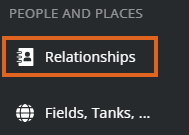
- Choose Relationships from the left navigation.
- Select + Add User in the lower right.
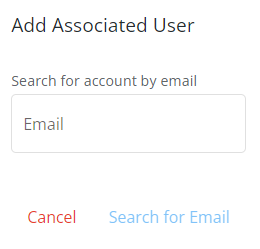
Note: If the Agvance SKY User logged in is not set up as a Company Admin, this button will not be available. - In the Add Associated User window, enter the Grower360 customer’s email address and choose Search for Email.
- Enter the First Name and Last Name of the Grower360 customer to be set up. Choose Create and Add.
 Note: If the email address is already linked to a Grower360 account, an option to select the associated account is available.
 Note: If the email address is already linked to a Grower360 account, an option to select the associated account is available.
An email prompting a password setup for Grower360 is sent to the customer from no-reply@grower360.net.
If those listed under Contacts need an account and a valid email address is present, choose Create Grower360 Account, verify the information, then select Create.

Account Request Form URL
Selecting Use Grower Account Request Form URL provides an area to enter the Account Request Form URL. The Request an account link on the Grower360 Login page redirects to the URL entered.

Note: This URL is to be set up and maintained by the company and is not the responsibility of SSI.
Allow Users to Request Account
Agvance SKY Admin
With Allow users to request an account selected, a Request an account link displays on the Grower360 Login page which opens a form to gather information.
Note: Company approval is required before a first-time user can be granted access.
A notification is sent to the Task Center where a Company Admin can approve access and add the user under Associated Grower360 Accounts in Agvance SKY Customer.
Note: For Grower360 Admins, a subscription can be set up to receive tasks to approve or deny new account requests from Grower360.
Indicate the Account Number Verification option. These include the Agvance Account Number (Customer ID) and Cross-References set up in Agvance Windows.
Customers will be required to enter this value when attempting to create an account. Optionally collect account-specific information (Phone Number and Zip Code) for reference (not used to verify the account).

Grower360
When a User selects Request an account, the following form displays to verify and request a Grower360 login.

Upon submitting the form, a message displays indicating the request was submitted. An email will be sent with a link to create a password.

Agvance SKY Admin
A notification will display in the Task Center with options to Deny or Approve & Add Account.

Selecting Deny gives the ability to enter a reason for the denial. No email goes back to the customer, but this keeps it as a completed task for reference.

Choosing Approve & Add Account opens the Add Associated User window on the Relationships page in Customer with the email from the request automatically populated.
- Choose Search for Email.
- Enter the First Name and Last Name of the Grower360 customer to be set up. Choose Create and Add.Note: If the email address is already linked to a Grower360 account, an option to select the associated account is available.
An email prompting a password setup for Grower360 is sent to the customer from no-reply@grower360.net.
