Energy Force users who also use Agvance can update customers without running the export\import processes. The new program can run manually or with Automated Tasks. This process only brings in new, modified, or updated customers increasing efficiency.
Setup Steps
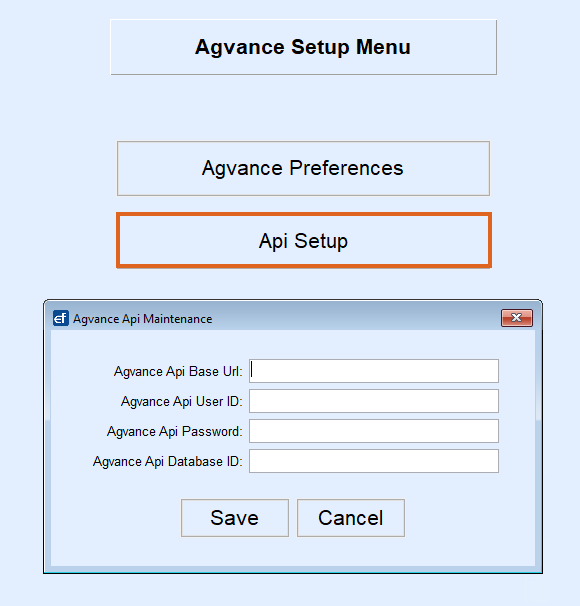
- Two system settings will need updated at Supervisor Menu / Set Up Options / Agvance Setup Menu / Agvance Preferences. The API Settings, also found in the Agvance Setup Menu, will need filled in as well.
- ImportCustFromAgv – Set to Y in order to use this new method.
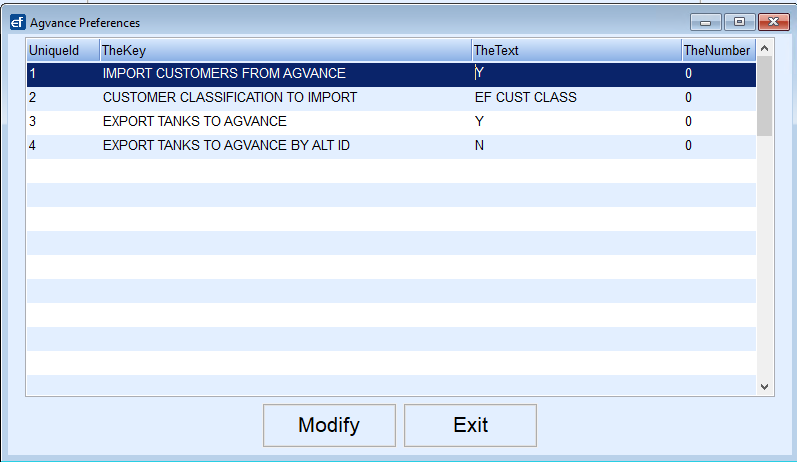
- AgvCustClass – Needs to have the Energy Force customer classification from Agvance set into the Actual Value field. If a classification is not entered then all customers from Agvance will be imported, if classifications are not used this can be left blank. In the example above the classification is EF Customers.
- Update the Energy Force user role of Allow_AgvApiSetup to Allow_AgvSetup. This role determines if the Agvance Setup Menu button is enabled.
- ImportCustFromAgv – Set to Y in order to use this new method.
- The AgvanceSqlDatabase value has to exists in the Secured Values. Contact Support for assistance with Secured Values.
Using the Import Customers Button
- An Import Customers button will display in the lower right corner of the Customer Maintenance screen in Energy Force for users with the DDB_Daily user right.

- Select Import Customers to bring in new and modified customers from Agvance.
- The first time this process runs all customers within the classification specified in the System Setting table will import. Also, an entry will be created in the Last Run Date Log with the date and time processed.
- Future imports will compare the Last Run Date entry for the customer import and only import customers with a Last Modified Date and Time in Agvance greater than the ones stored in the Last Run Date Log.
- Each time Import Customers is processed the date and time will be updated in the log.
- A log titled AgvCustImport_YYYYMMDD.csv is available for the new import in the CTLS93 / DD85 / Logs folder. The log will display if it was a new record (INSERT) or an update along with the customer information. There will be one log per day and logs are deleted after 7 days.

- A log titled AgvCustImport_YYYYMMDD.csv is available for the new import in the CTLS93 / DD85 / Logs folder. The log will display if it was a new record (INSERT) or an update along with the customer information. There will be one log per day and logs are deleted after 7 days.
- The Customer Maintenance screen will automatically refresh upon import completion.
- Automated Tasks setup for the customer import looks at these system settings.
- If ImportCustFromAgv is present and set to Y, the new method runs.
- If ImportCustFromAgv is not present or set to N, then the process will still read from the text file in the Interface folder.
- No changes are needed to the Automated Tasks setup.
- The Import Customer Balances button on the Daily Clear Menu still works, reading from a customers.txt file in the Interface folder and can be used, if necessary.
- Agvance customers will be imported based on the saved Export Energy Force setup and the last modified time in Grower.
Note: When Switch ID’s in File is checked, the Customer Number is read from the Alternate Cust ID attribute identified. Customers with blank EF Alternate ID attributes will not import to Energy Force.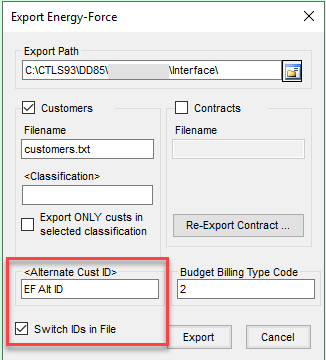

Auto Task Import Customers
Energy Force customers also using Agvance can setup the Import Customers process to run automatically located at Supervisor Menu / Maintenance Menu / Automated Tasks Menu / Background Tasks.
Note: The secured values and system settings from the Setup Steps tab are required for the automation setup as well.
To setup this new automated feature:
- Select CustomerSync from the drop down.
- Enter the Interval (Minutes) for how often to update the customer list.
- Mark the task as Active.
- All of the Date fields as well as the User Id field will fill in automatically.

If a user opens the Background Tasks while a process is running the In Progress box will be checked. This process runs when there is a user logged into Energy Force. The Next Scheduled Date is based on the last completed date plus the Interval (Minutes). New and updated customers with a last modified date and time in Agvance greater than the last Complete Date will import.
Note: It is recommend to remove the customers.txt from the Interface folder if using the new method to avoid pulling in old information.
Customer Import Error
Customer Sync for mutual Agvance and Energy Force users will receive the error message shown below identifying duplicates have been found caused by customers with leading zero Customer Numbers.
Agvance allows the entry of leading zeros which would be seen as two different Customer ID’s. However, when the customer was transferred over to Energy Force, Customer Number is a number field and the leading zeros would be trimmed off causing an error in the sync due to a duplicate Customer Number.
 For example, Customer 123 and Customer 0123 are both listed on the import. The leading zeros are dropped when importing into Energy Force, therefore, these accounts would both try to import as Customer Number 123.
Customers will not import, and the Last Run Date log will not be updated. The duplicate customers will be listed in the Full Exception box on the General Process Exceptions report at Management Reports / Exception Report Menu. Agvance Customer Name, Agvance Customer Number, and the number to import will be listed. Once the duplicate customer is resolved, the exception can be marked as Reviewed and will continue to sort with the most recent exception listed first.

