B2B Supplier eLink provides the ability to electronically send Purchase Orders to specific suppliers.
- Complete the Setup Purchase Order window at B2B Setup / Setup / Purchase Order using the supplier drop-downs on the B2B tab.
- Ensure the Product and Vendor Attributes on the Product and Vendor tabs below have been created.
Note: It is possible these have already been set up for other processes. - Ensure Location setup is complete in Agvance Windows and B2B as indicated on the Location tab.
More information on the Purchase Order export process for Winfield can be found here.
B2B

- Vendor – Select the Agvance Vendor representing Supplier for connectivity.
- Web Service URL – Enter the supplier-specific URL found under the drop-downs below.
- WS Logins – Users who will be responsible for sending POs through B2B must be selected in this area.
- UOM Conv. – For more information, see Units of Measure Conversion.
- FTP Site URL, FTP Folder Name, FTP Logins – FTP information is not used when utilizing the web service.
- Product Code Type – Select by supplier.
- Use Alt. Location Code – If Location GLNs are not consistent by supplier, alternative Location codes can be used. For more information, see B2B eBusiness Setup.
- API Profile – This is only used for Winfield connectivity.
Winfield
Column |
Value |
| Vendor | Winfield Vendor responsible for CPP ordering |
| Web Service URL | https://microservices.landolakes.com/v1/winfieldunited/ordermanagement/ |
| WS Logins | Indicate the Agv. User, then enter placeholder text for credentials:
|
| UOM Conv. | (None) |
| FTP Site URL | Leave blank |
| FTP Folder Name | Leave blank |
| FTP Logins | Leave blank |
| Product Code Type | AssignedBySeller |
| Use Alt. Location Code | If Location GLNs are not consistent by supplier, alternative Location codes can be used. For more information, see B2B eBusiness Setup. |
| API Profile | Varies. See API Profile. |
Aligned Ag
Column |
Value |
| Vendor | Aligned Ag Vendor responsible for ordering |
| Web Service URL | http://api-us.proagrica.com/inbound/us0000001436/order |
| WS Logins | Credentials are provided by the supplier. |
| UOM Conv. | (None) |
| FTP Site URL | Leave blank |
| FTP Folder Name | Leave blank |
| FTP Logins | Leave blank |
| Product Code Type | AssignedByManufacturer |
| Use Alt. Location Code | If Location GLNs are not consistent by supplier, alternative Location codes can be used. For more information, see B2B eBusiness Setup. |
| API Profile | (None) |
Product
Winfield
Product Attributes
For more information on setting up Product Attributes, see the Product tab here.
- UOM
- Winfield ID
Note: If multiple Suppliers are being used, a singular Supplier ID Attribute can be used, but best practice is to establish multiple Attributes to specify the Supplier (ex. Winfield ID, Aligned Ag ID).
When setting up these Attributes:
- Maximum Length – Leave blank
- Disallow Duplicates – Unchecked
- Required – Unchecked
- Show In List – Checked
Product Setup
Utilize the Crop Protection Cost Sheet Import to establish Attributes.
Aligned Ag
Product Attributes
For more information on setting up Product Attributes, see the Product tab here.
- UOM
Note: The UOM is case sensitive. OZ and oz are different units. - Aligned Ag ID
Note: If multiple Suppliers are being used, a singular Supplier ID Attribute can be used, but best practice is to establish multiple Attributes to specify the Supplier (ex. Winfield ID, Aligned Ag ID).
When setting up these Attributes:
- Maximum Length – Leave blank
- Disallow Duplicates – Unchecked
- Required – Unchecked
- Show In List – Checked
Product Setup
Aligned Ag Distributors will provide the master list including the Aligned Ag ID and UOM.
Vendor
Vendor Attributes
A Vendor Attribute must be set up. For more information on setting up Vendor Attributes, see the A/P tab here. Suppliers may require two Attributes to be set up depending on the type of messages that will be communicated.
- AGIIS-EBID
Attribute Values for Suppliers
Suppliers |
Functionality |
AGIIS EBID |
| Winfield | CPP Purchase Orders | 0034500002851 |
| Aligned Ag | Purchase Orders | 0034500004350 |
Location
Location GLNs should be verified with any/all suppliers before attempting connectivity.
B2B / Setup / eBusiness in the Value column of the Locations grid with the respective Agvance Location

- Location – Agvance Location that represents connectivity
- Code Type – AGIIS-EBID
- Value – GLN for the Location using connectivity.
- Cust ID – This is used with seed orders.
- Alt. Code Type – AGIIS-EBID
- Alt. Value – Used to accommodate multiple GLNs or GLN conflicts.
Note: By default, the system uses the information set in the Values column across all B2B processes unless Use Alt. Location Code is selected.
Aligned Ag Preferences
Aligned Ag
- On the computer running Agvance, create a folder to store copies of the XMLs sent to the Aligned Ag Vendor.
Note: It is preferred to create the folder on the same drive where the Agvance data is located. - Back in Agvance, navigate to Accounting / Setup / Preferences and select the Inventory Purchase tab. Within the Purchase Order options, select the Use alternate XML PO interface option. In the Folder to place ASCII PO Exports files area, select the path to the folder created in Step 1 above.
Note: If at any point the folder that was set up to use is no longer a valid folder, the Purchase Orders will fail to send without any error message returned.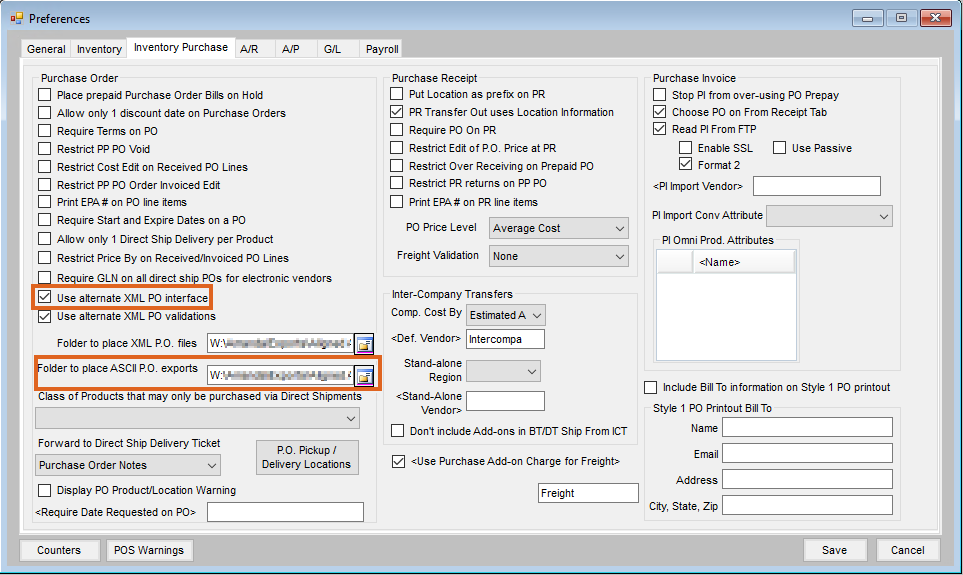
If the alternate Product ID or alternate UOM is missing or invalid, a warning message displays the PO line number, DeptID, and ProdID of the Product in question. There are options to continue and save or cancel and correct the information before saving again.
For this validation to be done, Use alternate XML PO validations must be checked at Accounting / Setup / Preferences on the Inventory Purchase tab.
