Prepayments give the ability to apply a Payment to specific Bookings or enter an amount to prepay.
- Initiate a Prepayment in one of two ways:
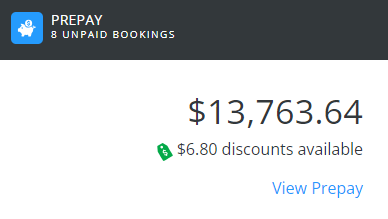
- Choose View Prepay on the Net Due card on the Overview page.
- Select Make a Payment at the top of the Overview or Payments screen, choose Prepayment, and select Continue.

- Choose View Prepay on the Net Due card on the Overview page.
- The Prepay Balance displays in the top left and Paid Bookings display in the bottom half of the screen. Select the Expand icon on a Booking line item to view additional details or the Ellipsis to view or download a PDF of the Booking.

- In the top right, choose Select Bookings to Pay or Enter Amount to Prepay and select Make Payment.

- Select Bookings to Pay – Specify which Bookings are to be included in the payment. Select Bookings using the checkbox then choose Pay Selected Bookings. Discount amounts will display when applicable.
Note: Bookings created from Grower Orders will not be available for selection in the list that displays.
- Enter Amount to Prepay – Enter an amount to be automatically applied to Unapplied Cash and select Next.

- Select Bookings to Pay – Specify which Bookings are to be included in the payment. Select Bookings using the checkbox then choose Pay Selected Bookings. Discount amounts will display when applicable.


Completing the Payment
- On the Payment Information page, review or add payment information. Select Review Payment.
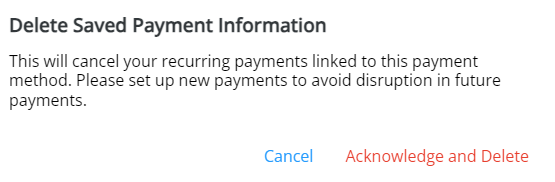
Note: If the Saved Payment Information needs updated, Delete that information then re-enter.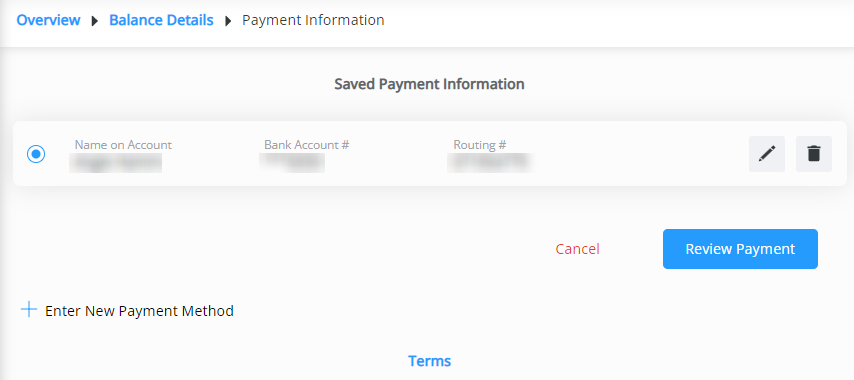 Note: To remove a saved payment method, the Delete icon can be selected. However, if there are recurring payments set to use that method, they will be removed and message will display to Cancel or Acknowledge and Delete.
- Review Selected Invoices (if applicable) and Account Information.
- Optionally add any Comments on Payment, and verify Contact Information.
- The Payment Date defaults to today, but can be changed if needed.
Note: Same-day payments cannot be cancelled after submitting.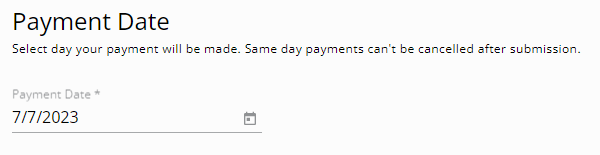
- Review the Terms. If paying via ACH, check the box agreeing to allow the ACH transaction to be processed. If using a credit card and a surcharge is being applied, check the I acknowledge (%) surcharge checkbox.
- Once all information has been reviewed and is accurate, select Submit Payment. Avoid selecting the Back button or refreshing the browser while the payment is processed.

 Note: To remove a saved payment method, the Delete icon can be selected. However, if there are recurring payments set to use that method, they will be removed and message will display to Cancel or Acknowledge and Delete.
