Custom Filters and Quick Filters help narrow the jobs that display in Agvance SKY Dispatch. Both are found in the left navigation under Customization / My Filters. Custom Filters define the Crop, Crop Chemistry, Type of Work, and Ship Via values available for filtering. Quick Filters save a set of filter criteria so it can be applied in one step on the List and Map views.

Custom Filters
Create filters for Crop, Crop Chemistry, Type of Work, and/or Ship Via. To add a new filter, select + New Crop Filter, + New Crop Chemistry Filter, + New Type of Work Filter, or + New Ship Via Filter. In the Add Custom Filters window that displays, select the desired option(s) from the drop-down menu. Added filters display as tags below the category header. To remove a specific filter, select the X.

Quick Filters
Save filter criteria to apply filters quickly. Quick Filters saved here are available on the List and Map views. The Filter Name and Filter Criteria display for each saved Quick Filter. Select the Edit icon to make changes or the Delete icon to remove the Quick Filter.

Adding a New Quick Filter
Select + New Quick Filter to add a Quick Filter. The Crop, Crop Chemistry, Type of Work, and Ship Via options available here are based on the filters added on the Custom Filters tab.
- Enter a Filter Name of up to 30 characters.
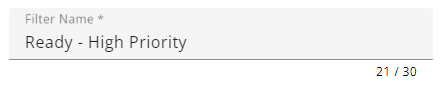
- Specify the filter criteria in the General, Job Status, Location, Priority, Service Type, Crop, Crop Chemistry, Type of Work, Ship Via, Applicators, Delivery Drivers, and Custom Tag sections.
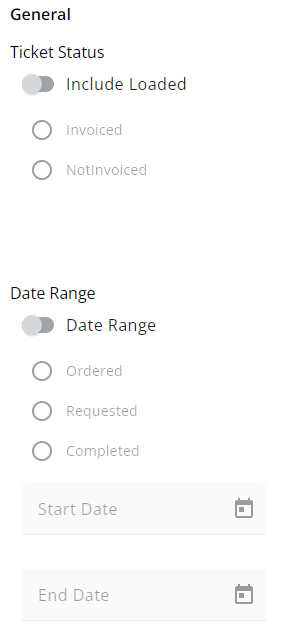
- In the General section, options are available for Ticket Status and Date Range. The Date Range is set using relative value selections rather than specific start and end dates, so the Quick Filter stays current each time it is applied.
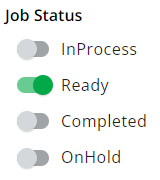
- Optionally include specific Job Statuses.
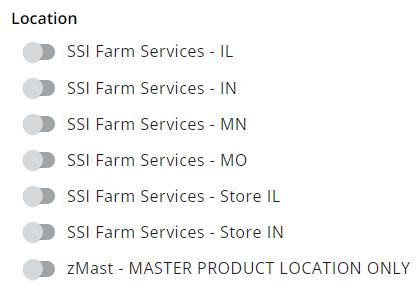
- Specific Locations can be chosen.
- Choose to include different Priority levels.
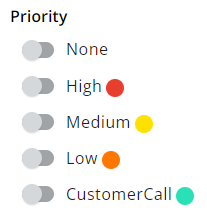
- Choose to include certain Service Types.

- Choose to include certain Crops, Crop Chemistries, Types of Work, and Ship Via options.

- Choose to include certain Applicators.
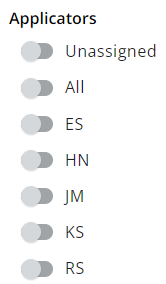
- Choose to include certain Delivery Drivers.
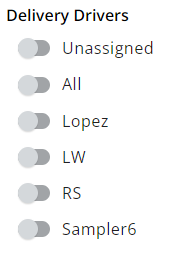
- Indicate Custom Tags to be included.

- In the General section, options are available for Ticket Status and Date Range. The Date Range is set using relative value selections rather than specific start and end dates, so the Quick Filter stays current each time it is applied.
- When all selections have been made, choose Save Filter.


Once saved, Quick Filters can be applied to:
- Blend Jobs in List View
- Blend Jobs in Map View
- Delivery Jobs in List View
- Delivery Jobs in Map View

