The following serves as a workflow for ammonia.
Custom Applied Workflow Benefits |
Grower Applied Workflow Benefits |
|
|
Custom Applied Workflow
Step 1: Create a Blend Ticket (Custom Application Only)
Purpose: The Blend Ticket represents the application service and enables the job to be dispatched through SKY Dispatch.
- Create a Blend Ticket that includes only the Custom Application charge.
Note: The anhydrous and nitrogen stabilizer inventory will be handled through Agronomy Scale Interface. - Tie the Blend Ticket to the Grower and Field where the application will take place.
- Include Billing Notes specifying the application rate or any relevant job details for the Applicator.
Step 2: Use Agronomy Scale Interface to Create Delivery Ticket
Purpose: The Delivery Ticket tracks actual product weights from the scale and is used for inventory, billing, and splitting between Fields as needed.
- When the anhydrous tank is hooked up and filled, use Agronomy Scale Interface to create a Delivery Ticket.
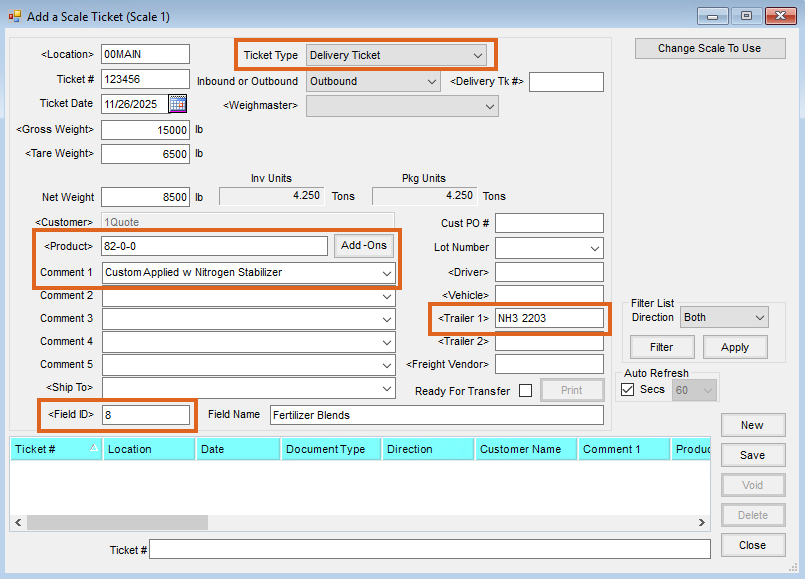
- Include:
- Grower
- Field
- Anhydrous and Nitrogen Stabilizer (if applicable)
Note: Enable Reduce from Base Weights to account for stabilizer content in the tank. - Tank Number
Step 3: Dispatch the Blend Ticket
Purpose: The Dispatch system provides the Applicator with all job information while keeping product and weight management handled through the Delivery Ticket.
- Use SKY Dispatch to send the Blend Ticket to the Applicator.
- The Applicator receives:
- Field details and boundaries
- Application instructions
- Billing Notes (including application rate or special instructions)
Step 4: Field Application and Tank Return
- The Applicator applies the product as directed on the Blend Ticket.
- Once the tank is returned, use Agronomy Scale Interface to complete the Scale Ticket.
- Agronomy Scale Interface creates the Delivery Ticket with the total weights of anhydrous and nitrogen stabilizer applied.
Step 5: (Optional) Combine and Split Out Tool
Best Practice: Always drop the tank before moving to another Grower (preferably before changing Fields) to ensure precise, Field-level usage and accurate billing.
- Navigate to Accounting / Inventory / Combine/Split Delivery Tickets and select the Delivery Ticket needing split.
- Choose how many tickets will replace the original ticket.
- Choose the correct Grower/Field ID for the first split of the new ticket.
- Update the correct quantity for the first ticket.
- Continue selecting subsequent Fields and their quantities until all inventory has been consumed.
Grower Applied Workflow
Step 1: Use Agronomy Scale Interface to Create Delivery Ticket
Purpose: The Delivery Ticket tracks actual product weights from the scale and is used for inventory, billing, and splitting between Fields as needed.
- When the anhydrous tank is hooked up and filled, use Agronomy Scale Interface to create a Delivery Ticket.
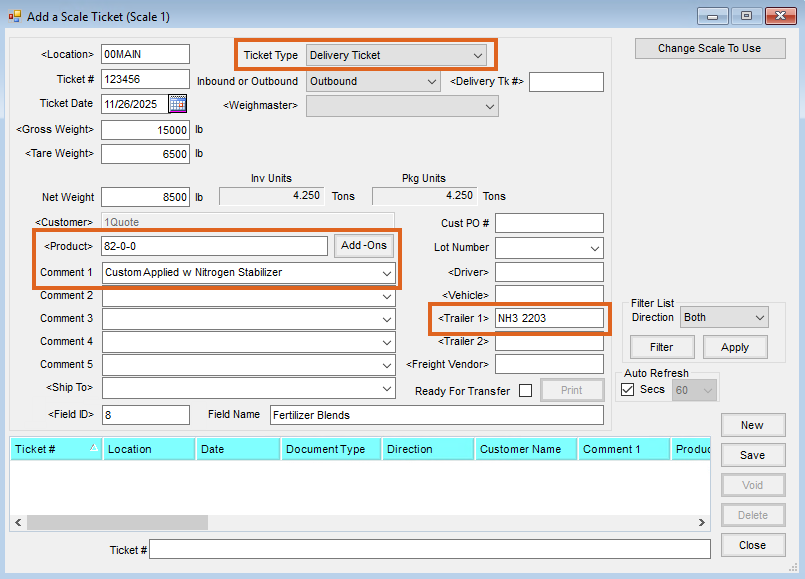
- Include:
- Grower
- Anhydrous and Nitrogen Stabilizer (if applicable)
Note: Enable Reduce from Base Weights to account for stabilizer content in the tank. - Tank Number
Step 2: Tank Return
- Once the tank is returned, use Agronomy Scale Interface to complete the Scale Ticket.
- Agronomy Scale Interface creates the Delivery Ticket with the total weights of anhydrous and nitrogen stabilizer applied.
Step 3: (Optional) Combine and Split Out Tool
Best Practice: For Field-level accuracy, the Grower would have to supply tank utilization information.
- Navigate to Accounting / Inventory / Combine/Split Delivery Tickets and select the Delivery Ticket that needs to be split.
- Indicate how many tickets will replace the original ticket.
- Choose the correct Grower/Field ID for the first split of the new ticket.
- Update the correct quantity for the first ticket.
- Continue selecting subsequent Fields and their quantities until all inventory has been consumed.
