Razor Tracking gives the ability to view real-time location data for Razor-equipped vehicles directly on the Agvance SKY Dispatch and Agvance Ops maps. By bridging third-party tracking with Agvance, this integration ensures dispatchers can monitor fleet movement and job status in a unified interface.
Setup in Agvance SKY Admin
An administrator must first enable the integration by entering the required API credentials.
- Navigate to Agvance SKY Admin / Dispatch.
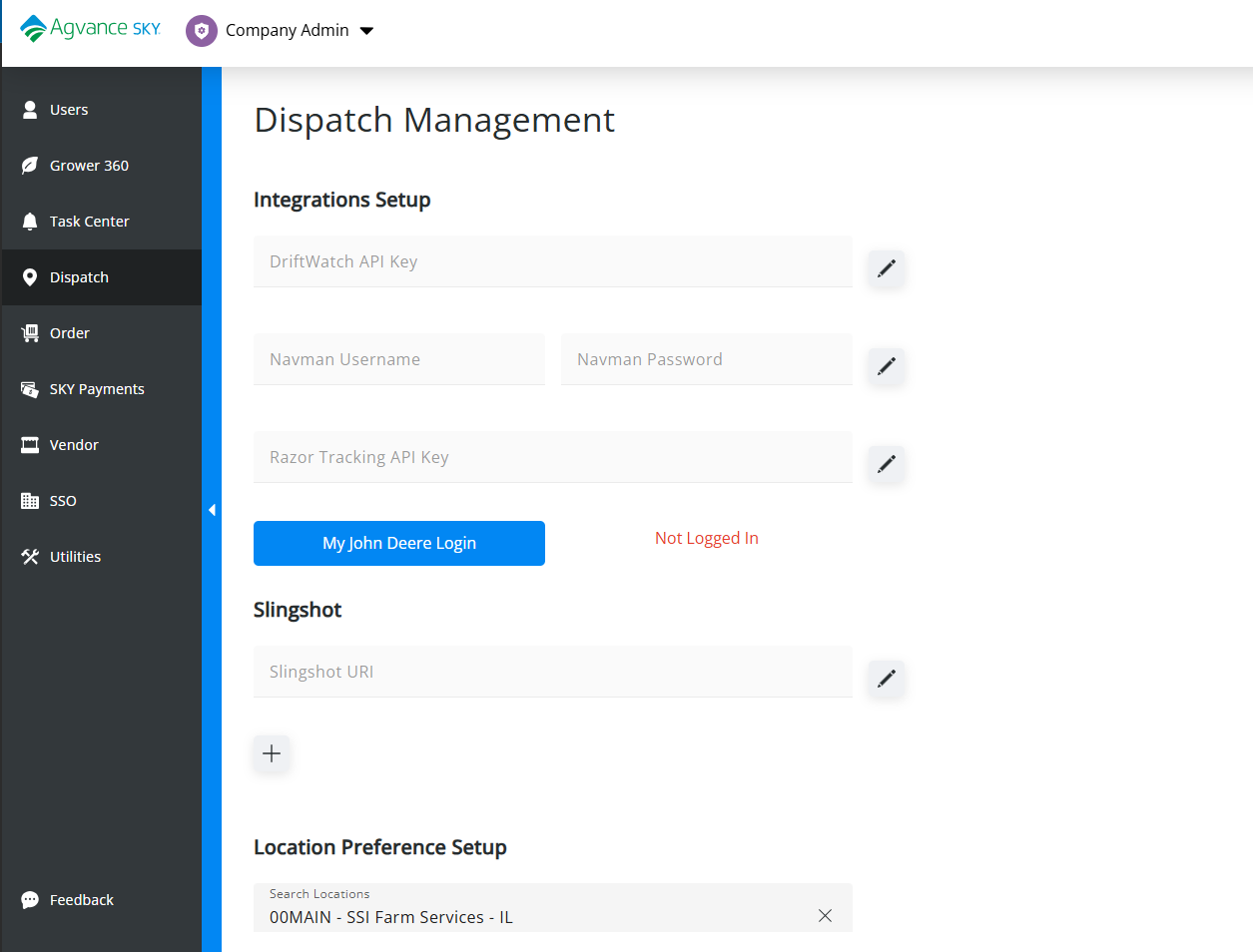
- In the Integrations Setup section, enter the Razor Tracking API Key.
- Select the Edit icon to save the key.
Setup in Agvance SKY Dispatch
Once enabled in Agvance SKY Admin, individual assets must be linked to Vehicles in Company Settings.
- Navigate to Agvance SKY Dispatch / Company Settings / Integrations.
- Select + Add Integration.
- Complete the setup fields:
- Vehicle – Select the Vehicle to link.
- Integration Type – Select Razor Tracking.
- Machine ID – Select the unique identifier of the Razor asset.
- Machine Alias – This defaults as Machine ID but can be edited.
- Map Icon – Choose a visual icon to represent the asset.
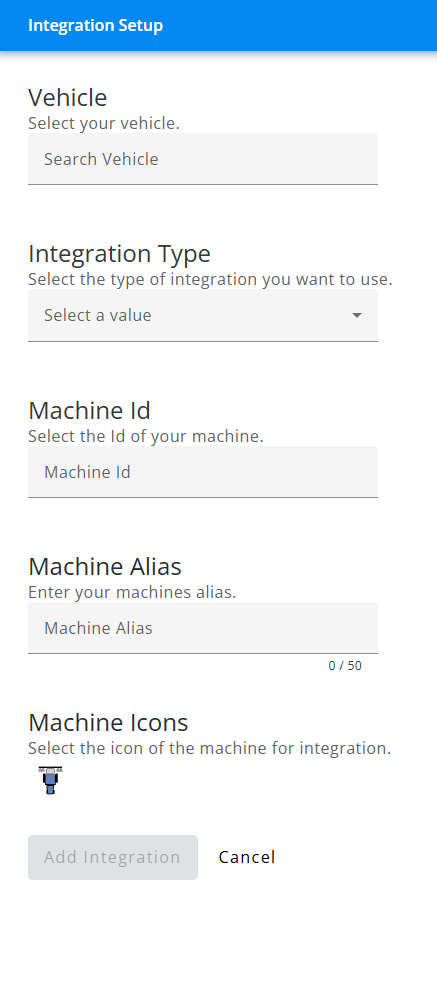
- Choose Add Integration to complete connection.
Personalize Settings
Control the visibility of integrated devices on map view through the Personalize tab.
- Select Personalize from the menu.
- On the General tab, locate the Integrated Device section.
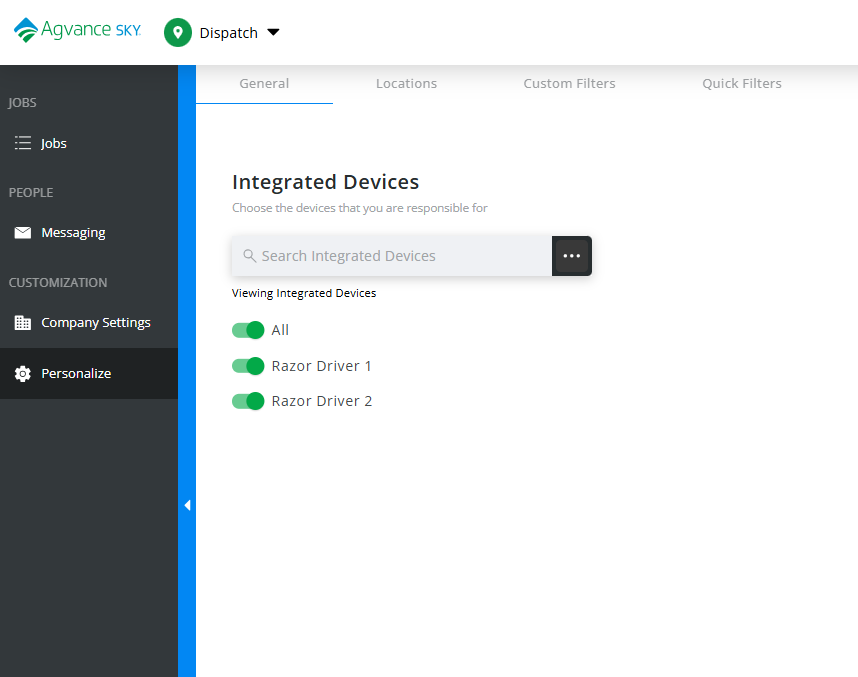
- Turn on Razor Tracking to display on the map.
Map View
Tracked assets, identified by their chosen Icon and Machine Alias, appear on the Agvance SKY Dispatch map when the Integrations option is enabled in the map options. Right-click any asset icon on the map to view the timestamp of its last reported location.
