The Dealer Order functionality is available for Vendors set up with seed ordering connectivity and provides tools to more effectively manage seed orders.
Dealer Order setup is included in the Seed Order setup.
Dealer Orders
At Accounting / Inventory / Manage Seed Orders / Dealer Orders a listing of all Dealer Orders for Locations available to the User are displayed. Choose the Vendor and Location from the drop-downs and select Request. This initiates communication with the Vendor and pulls in all order information currently in their system.
Alternatively, choose the the appropriate Dealer Order and select Edit. This initiates communication with the Vendor and pulls in all order information currently in their system.

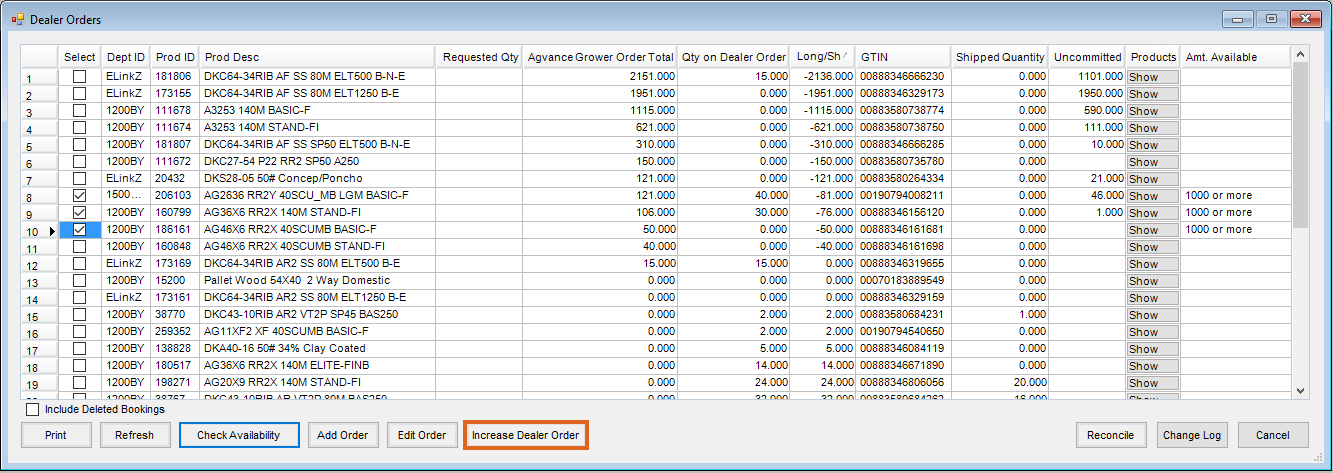
- Dept ID, Prod ID, Prod Description, and GTIN – Product information from the Product master file.
- Agvance Grower Order Total – This reflects the total for all Grower Orders within Agvance for a specific Product.
- Qty on Dealer Order – This reflects the total quantity of a specific Product allocated to the dealer from the Vendor.
- Long/Short – This quantity reflects the difference between the Agvance Grower Order Total and Qty on Dealer Order.
- Shipped Quantity – Reflects the quantity of Product the Vendor has shipped to the dealer.
- Uncommitted – The Uncommitted quantity reflects the total of Product ordered on the My Dealer Bucket account. The My Dealer Bucket is commonly used as a placeholder for future potential Grower Orders.
- Show – Display additional details for the Product.
- Amt Available – When a Product is tagged in the Select column and Check Availability is selected, manufacturer availability is populated in this column.
- Include Deleted Bookings – Optionally select to include Products and quantities from deleted Bookings.
- Print – Select to print a copy of the Dealer Order.
- Refresh – This will refresh the Product quantities for the displayed Dealer Order.
- Check Availability – A product availability request will be sent for products tagged in the Select column. Availability will populate into the Amt Available column.
- Reconcile – Adjust selected Products based on short or long positions. More information regarding reconciling the Dealer Order can be found on the Reconcile Shorts tab.
- Change Log – Display an informational report of all changes which occurred for the Dealer Order throughout the season.
Add Order/Edit Order/Increase Dealer Order
These tools are only for BAYER PRODUCTS. Attempting to use this tool for other suppliers can produce undesired results.
More information on these functions can be found on the Add/Edit/Increase tab of this article.
- Add Order – Used in conjunction with the Requested Quantity column, this tool is designed to fill Bayer supplied Products in a short or long position.
- Edit Order – Used in conjunction with the Requested Quantity column, this tool is designed to add supply to existing Bayer Grower Orders for Products in a long position only. This tool adds the requested quantity to a selected existing Grower Order.
- Requested Quantity – Used in conjunction with the Add Order and Edit Order tools.
- Increase Dealer Order – This button gives the ability to select multiple Products in a short position and send requests to fill the shorts without having to also populate the Requested Qty column. This feature uses a direct B2B message that allows the Dealer Order quantities to be updated without the creation of Grower Orders and Bookings.
Add/Edit/Increase
Add Order/Edit Order/Increase Dealer Order
These tools are only for BAYER PRODUCTS. Attempting to use this tool for other suppliers can produce undesired results.
Within Agvance, Product quantities on a Bayer Dealer Order can be adjusted by using the Increase Dealer Order, Add Order, or Edit Order tools.
Prior to using these tools, best practice is to run the Grower Order Reconciliation to ensure the Grower Orders between Agvance and Bayer are in sync.
Increase Dealer Order
Used to fill Products in a short position, the Increase Dealer Order tool submits a request to Bayer to increase the quantity on Dealer Order by the total amount of the short position.
- Navigate to Accounting / Inventory / Manage Seed Orders / Dealer Orders. A listing of all Dealer Orders for Locations available to the User are displayed. Choose the appropriate Bayer Dealer Order and select Edit.
Note: This initiates communication with the Vendor and pulls in all order information currently in their system. Alternatively, choose the Vendor and Location from the drop-downs and select Request. - In the Select column, check the box for each Product needing increased.
Note: The Product must be in a short position indicated by a negative amount in the Long/Short column. - Select Check Availability to ensure requested Product is available.
- Select Increase Dealer Order. A warning message stating Using the Update Dealer Order feature to fill shortages for non-Bayer suppliers will cause undesired results displays on-screen. Select Yes to continue.
- A request to Bayer to increase the Dealer Order by the amount of the short is submitted.
Add Order
Used to adjust Products in a long or short position, the Add Order feature automatically creates a new Grower Order and Booking for a specific quantity for a selected Customer. The Grower Order is then immediately submitted as a request to the manufacturer.
In the case of a short position, a subsequent request is then submitted, voiding the Grower Order and Booking in Agvance, while retaining the request to increase the Dealer Order quantity with the manufacturer.
In the case of a long position, the Grower Order is retained in both Agvance and Bayer to secure the seed in a long position on an order.
- Navigate to Accounting / Inventory / Manage Seed Orders / Dealer Orders. A listing of all Dealer Orders for Locations available to the User are displayed. Choose the appropriate Bayer Dealer Order and select Edit.
Note: This initiates communication with the Vendor and pulls in all order information currently in their system. Alternatively, choose the Vendor and Location from the drop-downs and select Request. - In the Select column, check the box for each Product needing adjusted.
Note: When using the Add Order function, it is advised to only select Products in a short position or only select Products in a long position and not both. - For Products in a short position, select Check Availability to ensure Product is available.
- Enter an amount in the Requested Qty column. Select Add Order. For Products in a short position, a warning message stating Using the Order function to fill shortages for non-Bayer suppliers will cause undesired results displays on-screen. Select Yes to continue.
- On the Select Customers window, select an account to use for the Product request. Select Done.
Note: Agvance recommends using a My Dealer Bucket account for this step.- Products in a short position:
- A Grower Order and Booking for the selected Customer and Product quantity are automatically created.
- The Grower Order is submitted to Bayer to increase the Dealer Order by the amount entered in the Requested Qty column.
- The Grower Order and Booking are automatically voided in Agvance. A subsequent request is submitted to Bayer canceling the Customer's placeholder Grower Order while retaining the increase to the Dealer Order.
- To avoid creating the additional Grower Order and Booking, the Increase Dealer Order function can be used to fill shorts instead.
- Products in a long position:
- A Grower Order and Booking for the selected Customer and Product quantity are automatically created.
- The Grower Order is submitted to Bayer to secure the amount entered in the Requested Qty column on a Grower Order.
- Products in a short position:
Edit Order
Used to adjust Products in a long position, the Edit Order tool allows the User to select an existing Grower Order to be edited.
- Navigate to Accounting / Inventory / Manage Seed Orders / Dealer Orders. A listing of all Dealer Orders for Locations available to the User are displayed. Choose the appropriate Bayer Dealer Order and select Edit.
Note: This initiates communication with the Vendor and pulls in all order information currently in their system. Alternatively, choose the Vendor and Location from the drop-downs and select Request. - In the Select column, check the box for each Product needing increased.
Note: The Product must be in a long position indicated by a positive amount in the Long/Short column. - In the Requested Qty column, enter the amount desired to increase the Grower Order total. Select Edit Order.
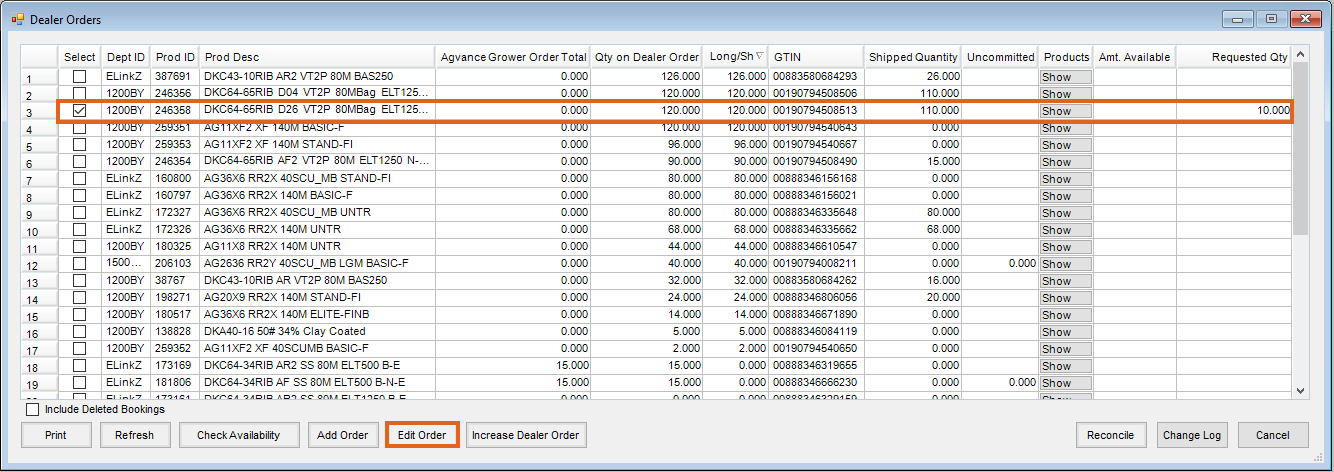
- On the Select Customers window, select the account to use for the decrease. Choose Done.
- On the Select Grower Order window, choose the Grower Order. Select Done.
Note: A new line will be added to the existing order for the Product and amount requested. - A request is submitted to Bayer to increase the Grower Order by the amount entered in the Requested Qty column.
Change Log
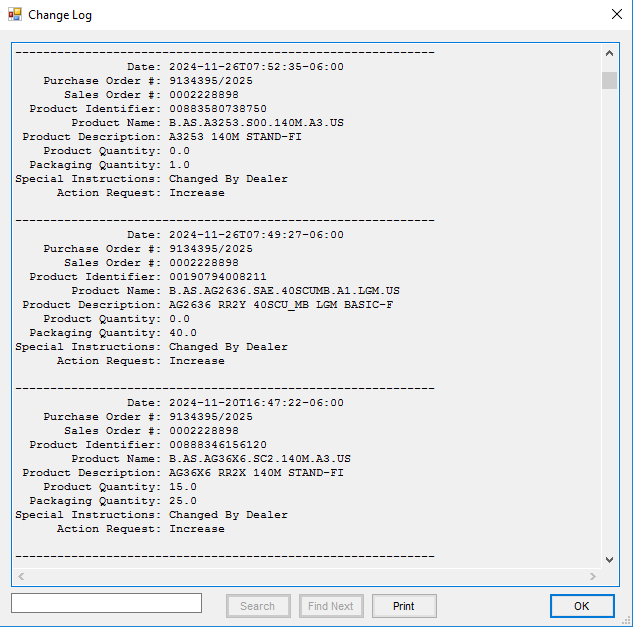
The Change Log displays all changes made to the Dealer Order for a selected Vendor and Location. The log includes changes made by both the dealer and the supplier.
- Navigate to Accounting / Inventory / Manage Seed Orders / Dealer Order.
- On the Select a Dealer Order window highlight a Dealer Order and choose Edit.
Note: To run a new request for the Dealer Order in the Supplier Request area, select the Vendor and Location and choose Request.
-
The Dealer Orders window displays, select Change Log.

- The Change Log displays on screen. Optionally use Search to locate specific information or Print the report.


Reconcile Shorts
The Dealer Order provides tools to effectively manage seed orders. The Reconcile tool is used to reconcile Products in a short position by reducing Grower Orders by the necessary quantity.
- Navigate to Accounting / Inventory / Manage Seed Orders / Dealer Order.
- On the Select a Dealer Order window, highlight the Dealer Order to reconcile and choose Edit. This initiates communication with the Vendor and pulls in all order information currently in their system. The Dealer Orders window displays.
- Optionally select the Long/Short header column to sort the grid with the Products in a short position at the top.
- Select the Products to be adjusted and choose Reconcile. The Reconcile to Dealer Order window displays with the Grower Orders listed for the first Product selected.
Note: If multiple Products were selected, choosing Update or Cancel will advance the window to the next Product selected.
- The Qty on Dealer Order displays the quantity allocated from the Vendor. The Amount Ordered quantity is the total quantity on Grower Orders in Agvance. The difference between the amount the Growers have on order and the amount on order from the Vendor displays in the Allotted Seed Left area.
Note: As manual or automatic adjustments are made to quantities, the Allotted Seed Left area recalculates. - Reconciliation to the Qty on Dealer Order can be calculated manually or by Agvance.
- Manual adjustments may be made by editing the amount in the Adjusted Quantity column for the desired Grower Order.
- Agvance can also automatically calculate the adjustment for each line item as a percentage or a flat amount. In the bottom left, select either Percent or Flat Amount, enter the amount by which to decrease the line item, and select Adjust Qty.
Note: When adjustments to quantities are complete, the Allotted Seed Left quantity must be 0.000 to reconcile the Amount Ordered to the Qty on Dealer Order quantity.
- Select Update and the Grower’s Bookings for each Grower Order adjusted display.
- Select Save to save the Booking for the adjusted quantity.

Cancel Seed
At times it may be necessary to cancel seed from a Dealer Order. It is recommended to contact seed representatives to cancel seed from the Dealer Order. However, Agvance does include options available to address canceling seed when needed.
Note: Prior to canceling seed, it is recommended to run the Grower Order Reconciliation which allows Grower Orders in Agvance to be compared with the corresponding Vendor’s web service. More information on the Grower Order Reconciliation, see the Reconcile tab here.
If Grower Orders exist within Agvance that correspond to the quantity on the Dealer Order:
- Navigate to Accounting / Inventory / Manage Seed Orders / Grower Order.
- Identify a Grower Order that contains the seed Product to be canceled. Select Edit.
- Change the quantity in the Requested Quantity column to 0. Select Request.
- Save the changes to the Grower Order.
- Repeat for all existing Grower Orders containing the Product to be canceled.
If no Grower Orders exist within Agvance that correspond to the quantity on the Dealer Order:
- Navigate to Accounting / Inventory / Manage Seed Orders / Grower Order.
- Select Add to create a Grower Order with the Product and quantity currently on the Dealer Order. In the Place Order column, select Request.
Note: It is suggested to place this order under a My Dealer Bucket Customer. - Change the quantity in the Requested Quantity column to 0 and select Request again.
- Save the changes to the Grower Order.
