More information on setup for Seed Orders/Grower Orders can be found here.
Grower Orders
A Grower Order is the transaction which requests seed from a supplier for a specific Grower. Creating a Grower Order in Agvance automatically creates a Booking, and optionally a Purchase Order, in one transaction.

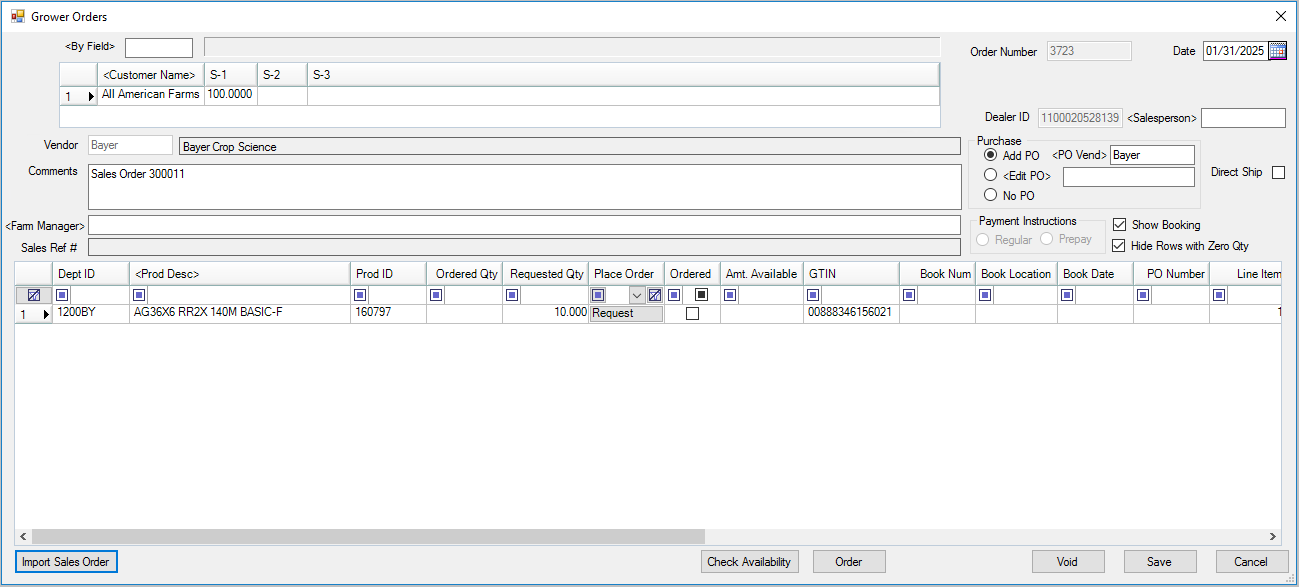
- Order Number – An auto-generated number assigned to each Agvance Grower Order.
- Date – Defaults to the system date but may be changed if necessary.
- Dealer ID – The dealer’s identification number as recognized by the supplier. The Dealer ID is set up in the B2B (Business to Business) Setup program.
- Salesperson – Selecting a salesperson on the order sends the Salesperson ID with the order to the supplier. The supplier can credit the salesperson for the order if this incentive is offered.
- Purchase – Select the Purchase Order option for this order. Add PO adds a new Purchase Order, Edit PO allows selecting an existing Purchase Order to update, and No PO does not add or update a Purchase Order. Once a Grower Order is saved, this selection defaults to the subsequent Grower Order.
- Direct Ship – If the Grower Order should ship directly to the Grower or a Location other than the dealer’s Ship To Location, select the Direct Ship option on the Grower Order. This sends a note to the supplier reminding them to contact the dealer prior to shipping the order to determine the shipping address.
- Comments – These comments are not submitted to the supplier but carry over to the Booking associated with the order.
- Farm Manager – If a farm manager is being used on the order, select it by double-clicking in the Farm Manager area. The list of available farm managers displays. The Role column in the Select a Farm Manager window has two options - Prepay and NonPrepay. Selecting a farm manager with a Prepay role enables two Payment Instruction options on the Grower Order window, Regular and Prepay, which sends special payment instructions with the Grower Order to the supplier. Selecting a farm manager with a NonPrepay role has the Payment Instruction options disabled and automatically sends Regular as the payment type to the supplier.
Note: The farm manager reference is included on the order when the products are requested from the supplier. The best practice is to select the farm manager prior to selecting and ordering products. If a farm manager is selected after the order is placed, to associate the farm manager with the supplier’s order, one of the products on the order must be re-requested. - Sales Ref # – The supplier’s order number. This number is used to identify the order in the supplier’s system.
- Payment Instructions – Select Regular or Prepay for the type of payment.
- Show Booking – When selected, at the save of the Grower Order, the Booking displays and is available to add discount information or edit pricing for all Customers on the Booking.
- Hide Rows with Zero Qty – When selected, rows on the Grower Order that have zero quantity will not be displayed when editing the Grower Order.
- Import Sales Order – Once a supplier and Customer have been selected, optionally select a Sales Order to import Products into the Grower Order. More information regarding importing a Sales Order can be found on the Using Sales Orders tab.
Grower Order Grid Columns
- Dept ID, Prod Desc, and Prod ID – The information as entered in the Product master file.
- Ordered Qty – The amount of Product on order with the supplier for this specific order.
- Requested Qty – An editable field that allows more or less of a Product to be requested on the order. The order can be increased by either increasing the Requested Qty or by adding another line item for the same Product and requesting the additional quantity for that line item.
- Place Order – After editing the Requested Qty (either increasing or decreasing the line item amount), submit the line item change to the supplier by selecting the Request button for the line item. More information regarding creating and ordering Grower Orders can be found on the Add/Edit/Void tab.
- Ordered – A checkmark in this column indicates the line item has been submitted to the supplier.
Note: Once the Requested Qty is changed for a line item, the Ordered column becomes unchecked because the change to the Requested Qty must be submitted to the supplier. - Amt. Available – Displays the amount of Product available for the dealer to order from the supplier.
- GTIN – Assigned by the supplier.
- Book Number, Book Location, and Book Date – This Booking information displays once a Grower Order is saved in the system and subsequently edited.
- PO Number – This number displays once a Grower Order is saved in the system and subsequently edited.
- Line Item – A number assigned to the line of the order when Product is added.
- Selling Price – A unit price for the line item may be added to the Grower Order by double-clicking in the Selling Price column. Enter a price or select from the available prices. This unit price carries over to the Booking.
- Price Level –Populates based on the selection made in the Selling Price column.
- Increase to Dealer Order Qty – This quantity is returned by the supplier and indicates the amount the Dealer Order changed after the Grower Order was placed.
Note: This quantity is the absolute value of the change. If the order was decreased, this number is still reflected as a positive number. - Total Dealer Order Qty – This quantity is returned by the supplier and indicates the amount of Product on the Dealer Order.
- Total of All Grower Orders – This quantity is returned by the supplier and indicates the total amount of Product that exists on all Grower Orders for the dealer.
- Long / (Short) – This quantity is returned by the supplier indicating the dealer’s long or short position for the Product on the line item. This number should also be the difference between the Total Dealer Order and Total of All Grower Orders columns.
- A positive number indicates the dealer has more Product on their Dealer Order than on Grower Orders.
- A negative number indicates the dealer has more Product on Grower Orders than on their Dealer Order, creating a short position.
- Sales Order Number – When the Import Sales Order function is utilized, the imported Sales Order number displays.
- Do Not Submit Electronically – Additional Products can be added to the Booking screen but not submitted to the supplier by selecting this option. An example of this would be a generic prepay Product.
Add/Edit/Void
As supply and demand changes throughout the seed season, Grower Orders may need to be edited or voided.
Add Grower Order
A Grower Order is the transaction which requests seed from a supplier for a specific Grower. Creating a Grower Order in Agvance automatically creates a Booking, and optionally a Purchase Order, in one transaction.
- Navigate to Accounting / Inventory / Manage Seed Orders / Grower Order and select Add. Choose the Vendor.
- On the Grower Orders window, double-click in the By Field or Customer Name area to select the Grower purchasing the Product.
- To select a Field, on the Select a Field window, select to highlight the Customer and Field. Choose Select.
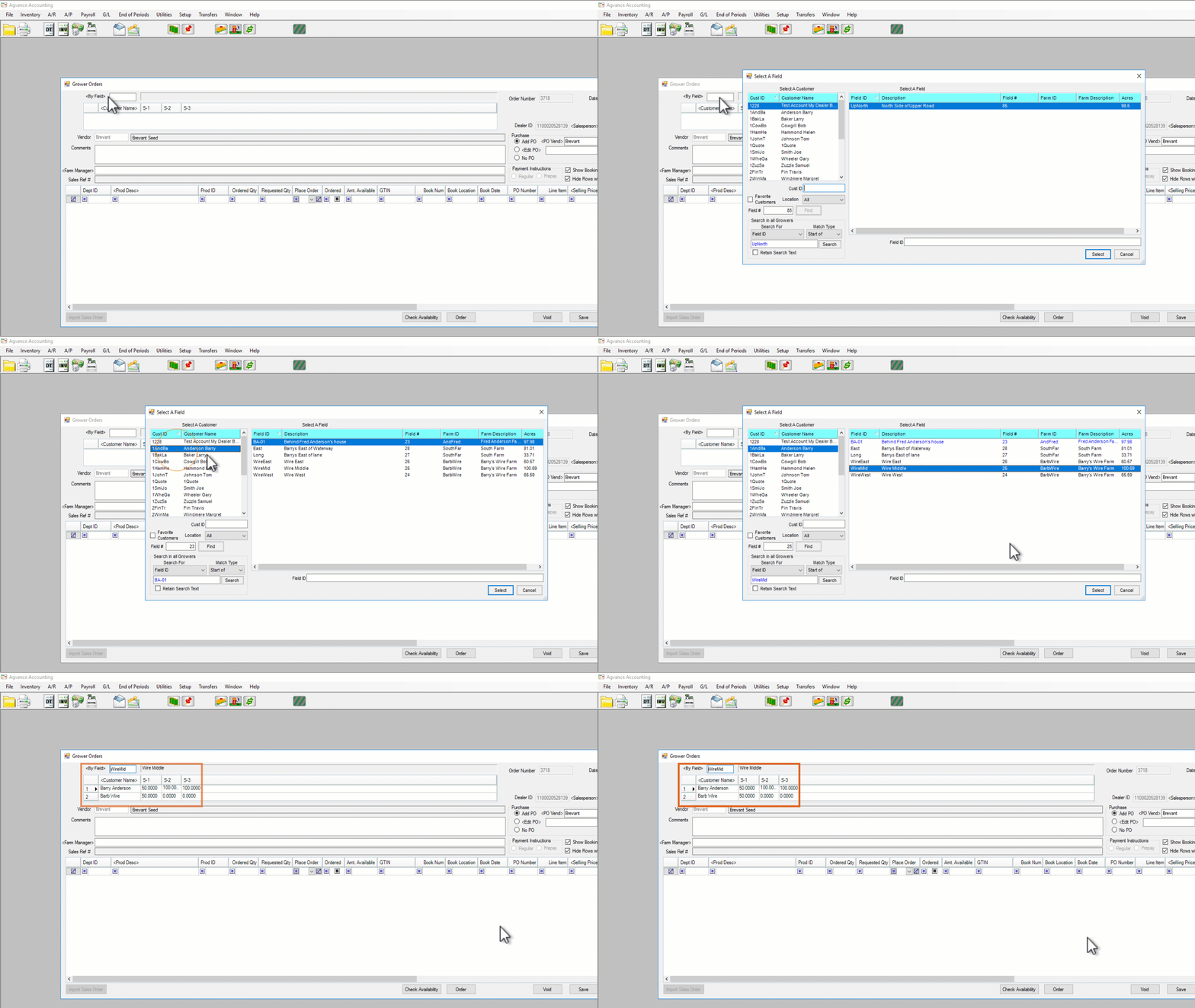
- To select an individual Customer, highlight the account and choose Done.
- To select multiple Customers, click to highlight the first account. Hold Ctrl on the keyboard and highlight the additional accounts. Select Done.
Note: When multiple Customers are selected, split information is listed with 100 percent of the split assigned to the first Customer on the order. Splits can be manually adjusted if necessary. The Grower Order is placed in the Vendor’s system for the first Grower in the split with a GLN set up in Agvance.
- To select a Field, on the Select a Field window, select to highlight the Customer and Field. Choose Select.
- In the Purchase area, choose Add PO, Edit PO, or No PO. More information detailing the Purchase options can be found on the Purchase tab of this article.

- Add PO – Select this option to create a new Purchase Order for the Vendor with the Products and quantities on the Grower Order.
- Edit PO – Select this option and double-click in the blank field to display a list of the Vendor's Purchase Orders. Highlight the desired PO in the grid on the left. The Products on the PO load in the grid on the right. Double-click on a Product to add to the bottom grid. Choose Done. The selected PO number populates on the Grower Order and when saved, the Edit a Purchase Order window is displayed.
Note: If the PO is for a different Vendor than displayed, first double-click in the PO Vendor field, and select the correct Vendor. - No PO – Select this option to bypass creating a new PO when the Grower Order is saved.
- Optionally, if a Sales Order exists, select Import Sales Order to select the Sales Order to import. More information regarding importing a Sales Order can be found on the Using Sales Orders tab.
- To print the Booking information upon saving the Grower Order, select the Show Booking option.
Note:Farm Manager, Direct Ship, and Payment Instructions are options connected with the Supplier eLink module. - Optionally select the Hide Rows with Zero Qty on the Grower Order checkbox.
Note: When selected, this option hides lines with a zero quantity which are marked as Ordered or Do Not Submit Electronically for a Vendor with B2B seed ordering set up. For Vendors not set up in B2B, any line with a zero ordered quantity is hidden.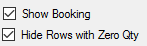
- Double-click on Prod Desc to select the Products the Grower is ordering from the Vendor.
- On the Select Products window, add the Products to the shopping cart. Optionally, select Check Availability to run the Vendor availability for the Products in the shopping cart.
- To add the Products to the Grower Order and submit an order request to the Vendor, enter the amount to be ordered in the Quantity column and select Done.
- To add the Products to the Grower Order without ordering from the Vendor, leave the Quantity at 0 and select Done.
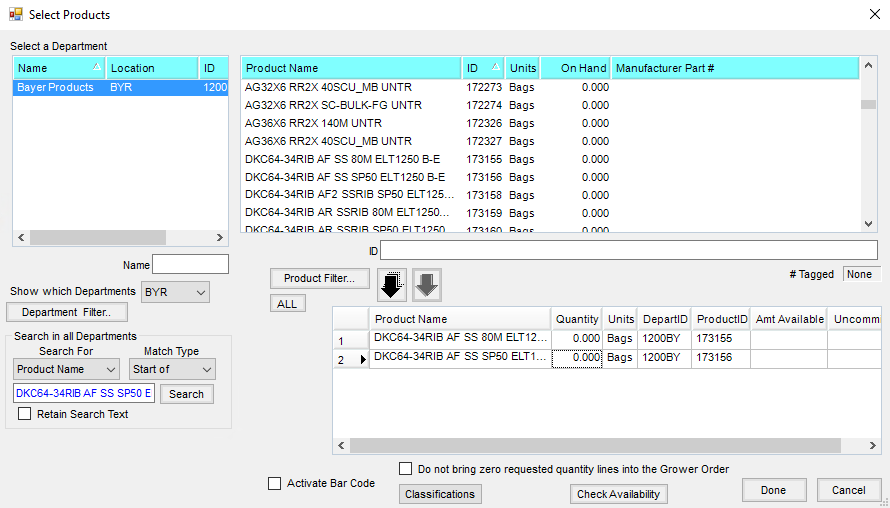
- On the Grower Order window, if the Product was not ordered in Step 8, enter an amount in the Requested Qty column. Optionally, select Check Availability.
- To order an individual Product, select Request.
- To order all Products on the Grower Order, select Order.
Note: Products successfully ordered with the Vendor are indicated by a check in the Ordered column and an amount populated in the Ordered Qty column.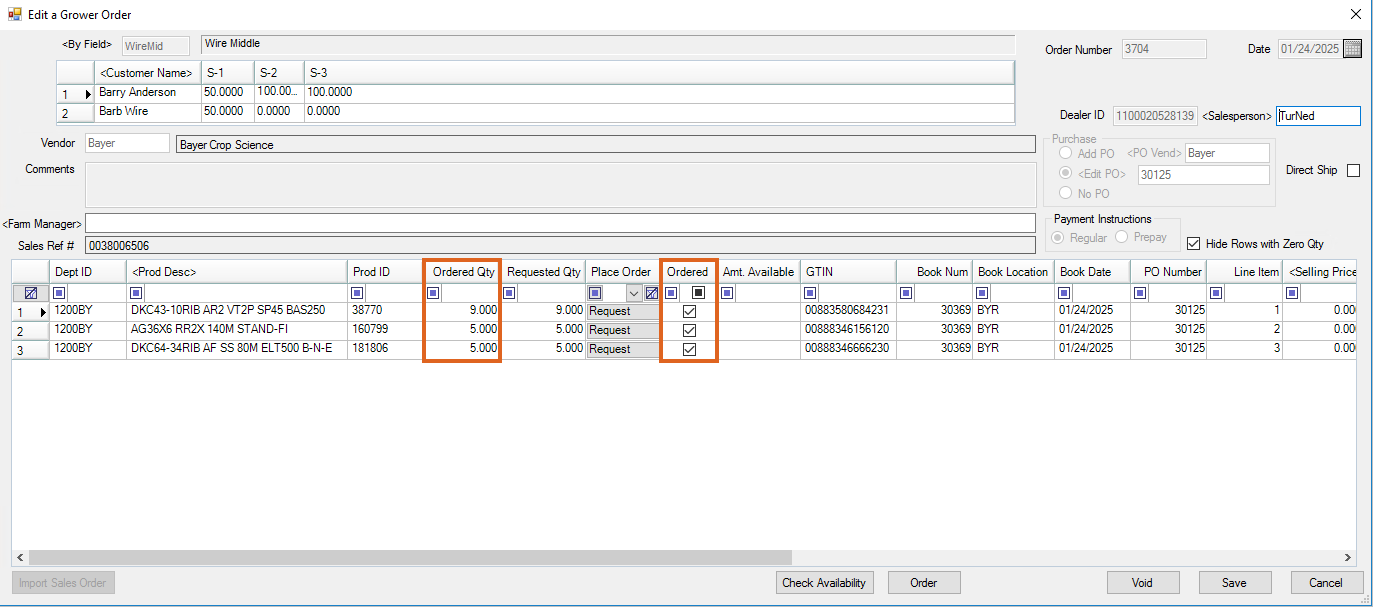
- Select Save. A Booking is created and, depending on the Purchase setting, a Purchase Order may be added or an existing PO is updated.
Note: Seed Bookings attached to Grower Orders will not be available to be paid in Grower360.
Edit a Grower Order
- Navigate to Accounting / Inventory / Manage Seed Orders / Grower Order. Highlight the Grower Order and choose Edit.
- To add Products to the Grower Order, choose Prod Desc. Select the desired Products and choose Done. Enter an amount in the Requested Qty column.
- To increase or decrease the quantity of an existing Product, change the amount in the Requested Qty column.
Note: When the Requested Qty column is edited the Ordered column is automatically unchecked allowing the changed line-item to be re-ordered from the Vendor.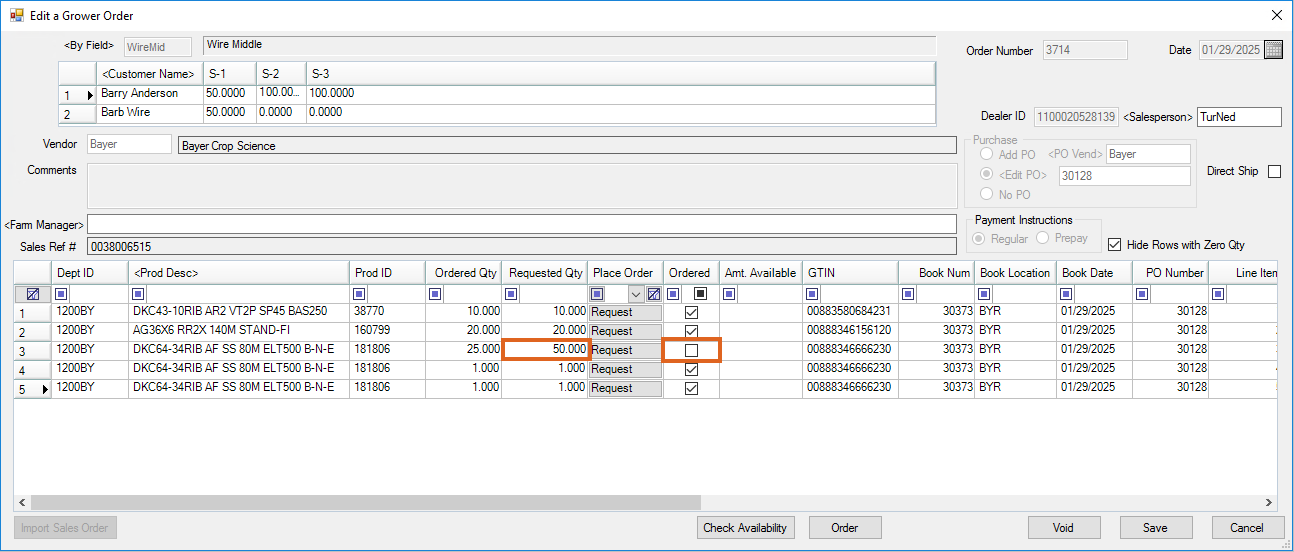
- To remove a line item on the Grower Order in the supplier’s system, set the Requested Qty to 0.
Note: Once a zeroed-out line item has been submitted to the supplier, no future increases to the Requested Qty are allowed for this line item. Additionally, a line item on a Grower Order cannot be deleted in Agvance because the Grower Order is associated with both a Booking and, optionally, a Purchase Order.
- Optionally, select Check Availability to check availability for all Products on the order containing a GTIN in the Agvance Product file.
- To submit the changes to the supplier:
- Choose Request on a line item to send the individual Product's new requested quantity to the supplier.
- Choose Order to submit all updated Products to the supplier at one time. For example, if editing the requested quantity on three line items and adding two new Products to the Grower Order, select Order to submit all five line items at the same time, instead of choosing Request on each changed line item.
- Once the changes to the Grower Order have been submitted to the supplier, choose Save to save the changes in Agvance.
- The Grower Order is updated and the Booking window displays allowing the Grower’s prepay to be managed if necessary. Choose Save.
- If applicable, the Purchase Order window opens allowing any necessary changes to be made and saved.
Void a Grower Order
Voiding a Grower Order may result in lost seed. To retain supply, consider using the Grower Transfer feature (Transfer tab of this article) to transfer the Products to a different Field, Grower, or group of Growers.
When a Grower Order is voided:
- The Grower Order is voided in Agvance and the associated Booking is also voided.
- The Purchase Order quantities are updated for all Products on the Grower Order.
- The Products on the Grower Order are submitted to the supplier at a 0 quantity, and the order is removed from the supplier’s system.
- Navigate to Accounting / Inventory / Manage Seed Orders / Grower Order. Highlight the Grower Order and choose Edit.
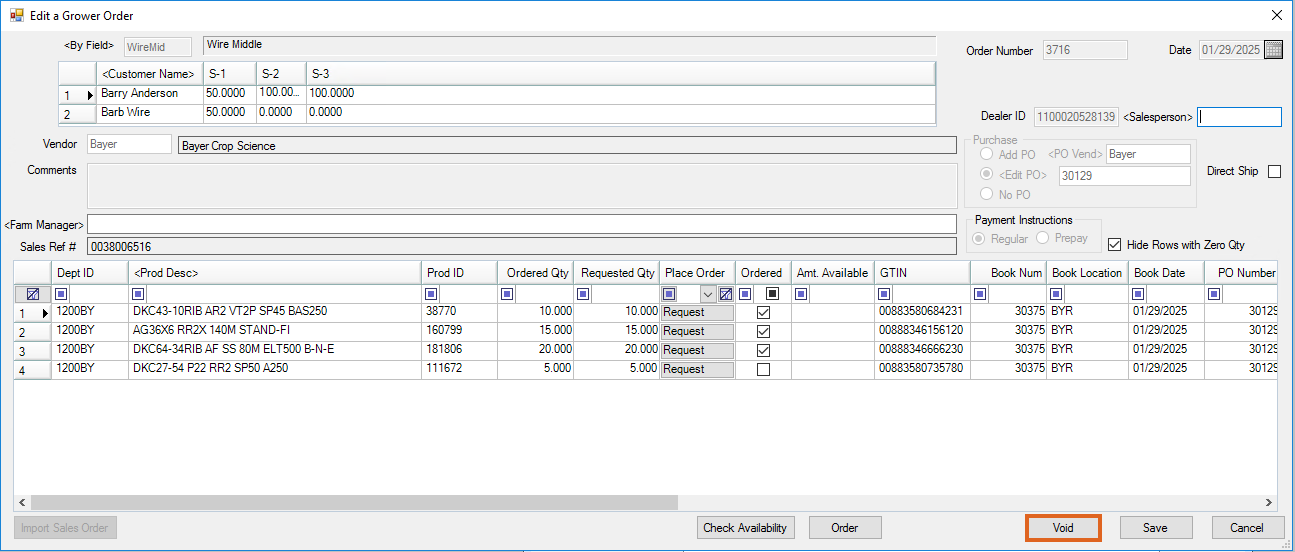
- Select Void on the Edit a Grower Order window. Choose Save.
Change Product Package Size/Treatment on Grower Orders
It is recommended to contact seed representatives to handle package size and treatment changes to eliminate the risk of losing seed. Agvance does include options to address package size and treatment changes when needed.
If requesting these changes in separate steps and the new Product is not available on the Vendor’s side, the request to decrease the seed supply would be successful and the request for the additional supply would not secure seed since none is available, resulting in lost seed.
To make changes to existing Grower Orders, use the following steps:
- Navigate to Hub / Transfers / Import / Agvance Data Link to create a new Product with the correct package size if it has not already been added. The GTIN will be needed for this step.
Note: Do not delete the Product with the incorrect package sizing. - Go to Accounting / Inventory / Manage Seed Orders / Grower Orders and locate the Grower Order containing the seed. Select Edit.
- Select Product Desc and locate the new Product with the correct packaging or treatment. Add the Product to the shopping cart.
Note: Do not enter a Quantity in the shopping cart. - Select Check Availability. If there is an Amount Available, select Done.
Note: If the new Product does not have an amount available, seed will not be secured in the ordering process in Step 6.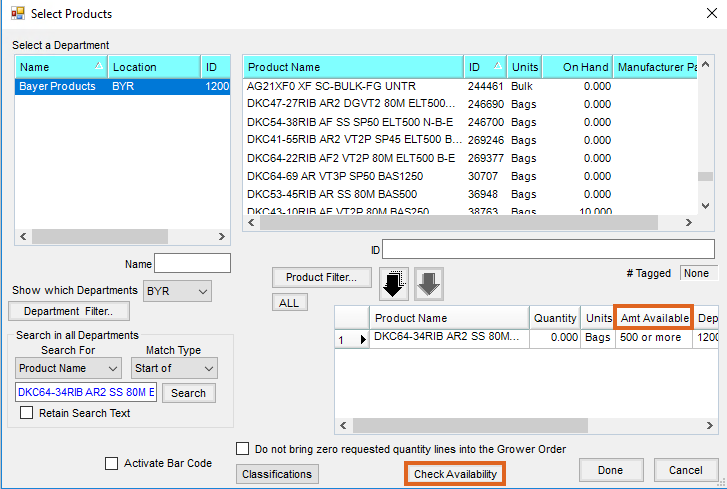
- In the Edit a Grower Order window:
- On the original Product line, in the Requested Qty column, reduce the quantity of the seed.
- On the new Product added to the Grower Order, add that quantity in the Requested Qty column.
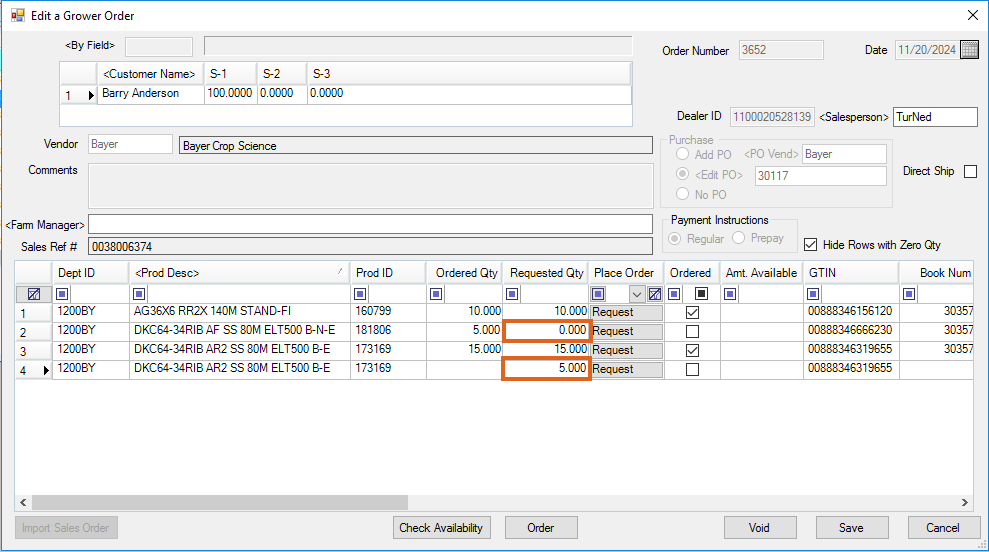
- Select Order to send the changes to both Products in the same request.
Note: This process only works when sending the changes in the same request. This process will not work using the Request button on individual line items when issuing package changes out of Agvance.
Transfer
Seed orders can be tracked at Accounting / Inventory / Manage Seed Orders. Once a Grower Order is established, all or part of the order can be transferred to another Field, Grower, or group of Growers.
Note: An option is available to Hide Rows with Zero Qty on the Grower Order. When selected, this option hides all lines with a zero quantity which are marked as Ordered.
- Navigate to Accounting / Inventory / Manage Seed Orders / Grower Order. Select the appropriate Grower Order and choose Grower Transfer.
- In the Transfer Grower Information section of the Grower to Grower Transfer window, double-click in the By Field or Customer Name area to choose the Customer to whom the Order is being transferred. The Date can be edited as needed.
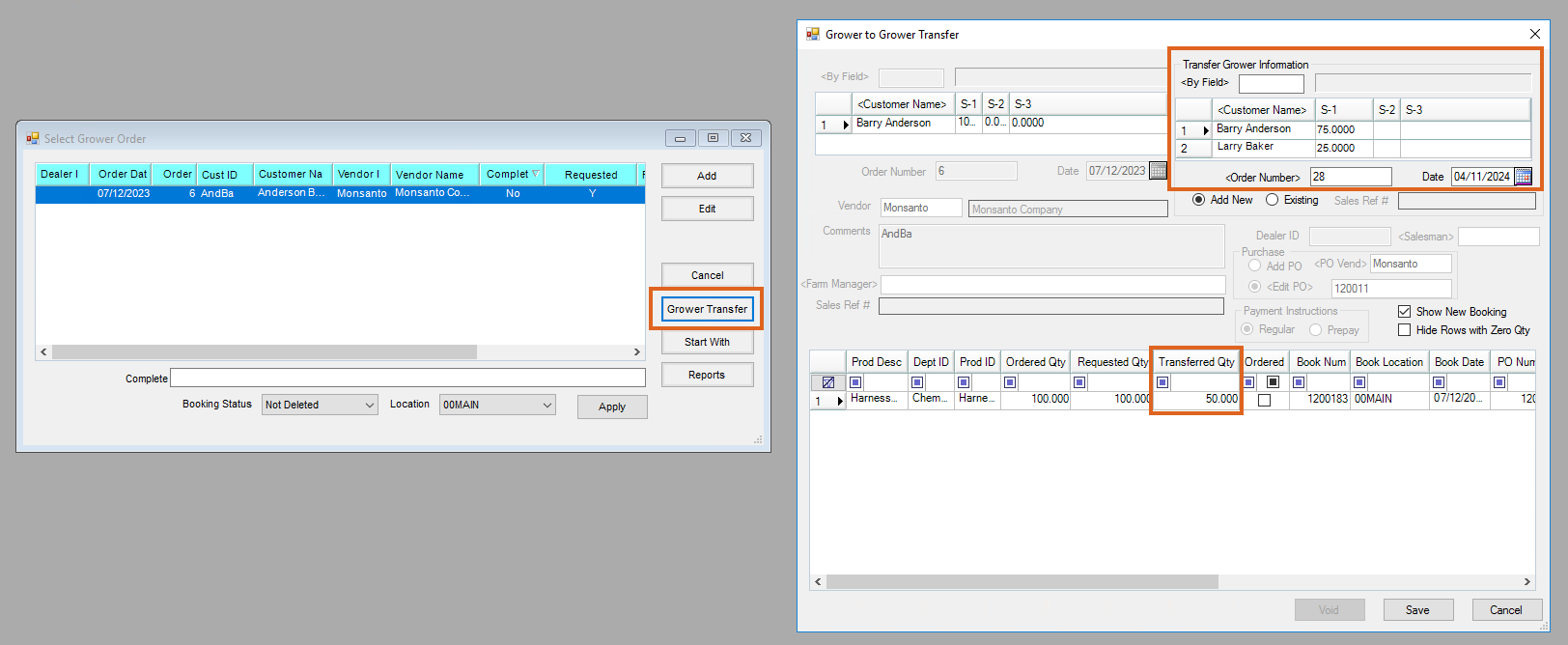 Note: If multiple Customers are selected, specify the split percentages.
 - Choose Add New or Existing to add a new Grower Order or to add to an existing one. Edit the Date as needed.
Note: Transfers to Customers who do not have an existing Grower Order automatically create a new Booking for the transfer amount. If the transfer is to an existing Grower Order, the original Booking is updated. - Optionally check Show New Booking to display the Booking information for each Customer's Grower Orders included in the transfer.
Note: The Bookings will displayed after Step 5 is completed. - In the Transferred Qty column, enter the quantity to be transferred. Select Save.
 Note: If multiple Customers are selected, specify the split percentages.
Using Purchase Orders
In Agvance, adding or editing a Purchase Order for the selected Vendor is an optional feature when adding a new Grower Order.

Add PO
Add PO creates a new PO for the Vendor that includes all Products and quantities on the Grower Order.
This feature is commonly used at the beginning of the season to create a Purchase Order for the Product and quantities allocated to the Dealer from the Supplier on the Dealer Order. For that scenario, while not required, it is recommended to use a My Dealer Bucket Customer account when creating the Grower Order.
Prior to using the Add PO option, the Location's Purchase Order Auto Numbering, found on the Preferences tab at Accounting / Setup / Locations, must be enabled.
Edit PO
Edit PO allows a Vendor's existing Purchase Order to be selected for edit. Upon saving the Grower Order, the Edit a Purchase Order window displays with the details of the Purchase Order. In addition:
- Products and quantities on the Grower Order that were not originally on the PO are added as a new line-item.
- Quantities for Products originally on the PO are adjusted to reflect the Quantity added on the Grower Order.
Example: The original Purchase Order contains 10 units of DKC64-34 AF SS 80M ELT500. The Grower Order contains 25 units of the same Product. The PO now contains 35 units of DKC64-34 AF SS 80M ELT500.
Note: If the Edit PO option is selected, a Purchase Order for the selected Vendor must exist in the system prior to adding the Grower Order.
No PO
Selecting this option will bypass creating a new PO when the Grower Order is saved.
Using Sales Orders
Grower Orders can be created by importing an existing Sales Order.
- Navigate to Accounting / Inventory / Manage Seed Orders / Grower Order. Choose Add and select the Vendor.
- On the Grower Orders window, double-click Customer Name. Highlight the Grower's account and choose Select.
- Choose Add PO to create a new Purchase Order, Edit PO to update an existing Purchase Order, or No PO to not create a Purchase Order.
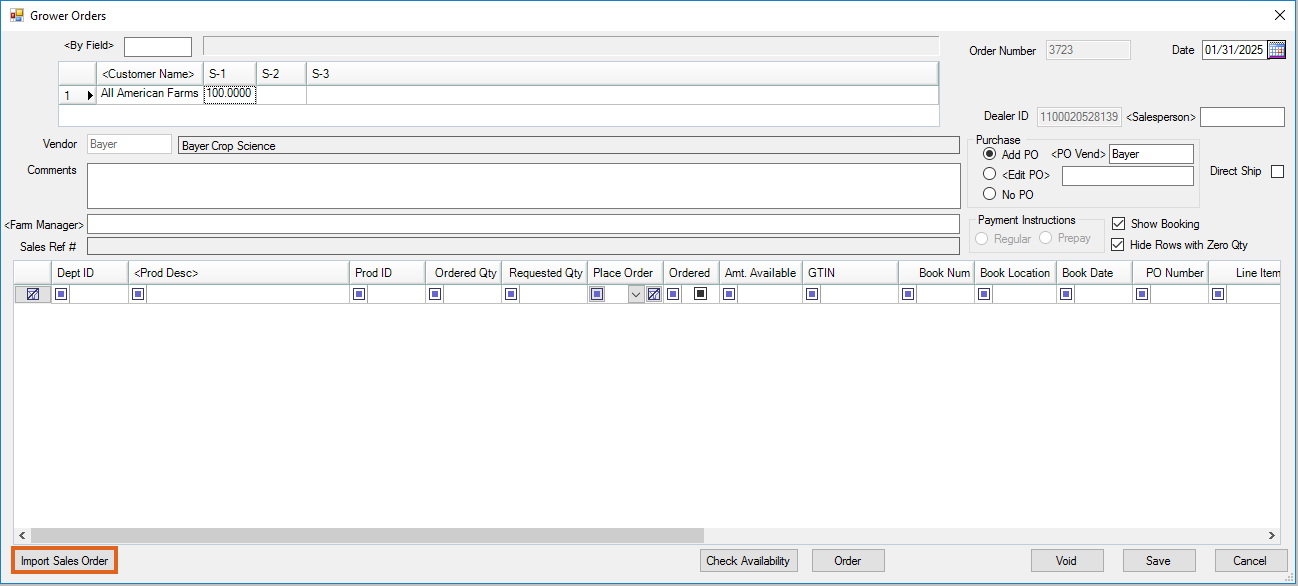
- Select Import Sales Order to display a list of Sales Orders available for import. Optionally, use the available Sales Order Filter or Order # field to search for the desired Sales Order. Select to highlight and choose Import.
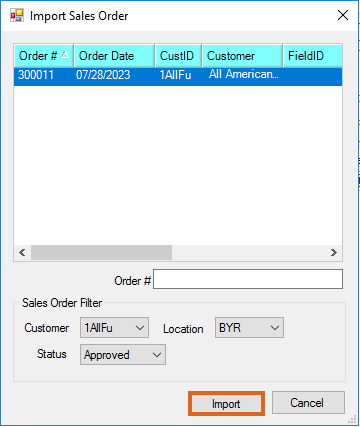
- The Products and quantities on the Sales Order are imported to the Grower Order grid. To adjust quantities, edit the amount in the Requested Qty column.
- Optionally, select Prod Desc to add additional Products to the Grower Plan. Submit the Grower Order to the Vendor by selecting Order.
- Choose Save. A Booking is created and, depending on the Purchase setting, a Purchase Order may be added or an existing order is updated.
Reports
Unordered Quantity Recon Report
The Unordered Quantity Recon report provides a list of Products on Grower Orders that have not been marked as ordered, indicating that the requested quantity on that line of the order has not been successfully transmitted to the seed Vendor.
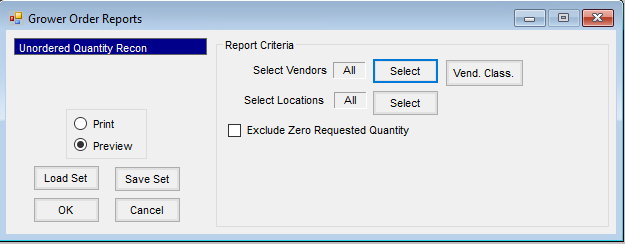
The report allows for open Grower Orders to be grouped together by Vendor or Location, with an option to Exclude Zero Requested Quantity records.
- Navigate to Accounting / Inventory / Manage Seed Orders / Grower Order.
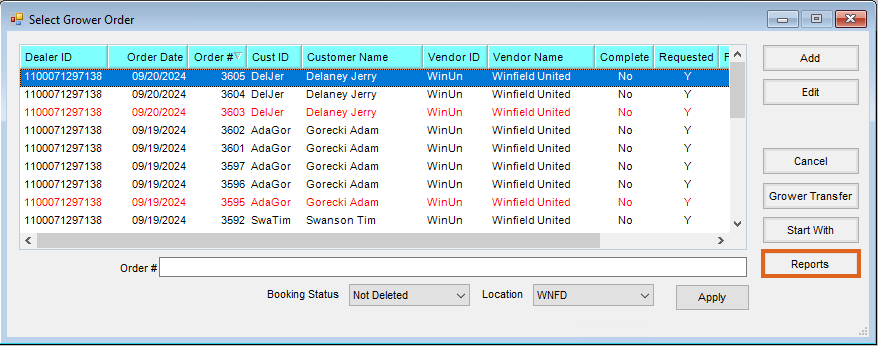
- On the Select a Grower Order window, choose Reports.
- On the Grower Order Reports window, optionally select the Vendors and/or Locations for which to run the report.
- By default, all line-items on open Grower Orders are included in the results. To exclude line-items that have 0 in the Requested Qty column, select the option Exclude Zero Requested Quantity. Choose OK.
 Note: If a Vendor or Location is not specified, results will be grouped by Vendor first followed by Location.
 Note: If a Vendor or Location is not specified, results will be grouped by Vendor first followed by Location.
Substitutions
The Grower Order Product Substitution utility is available to assist in locating all Grower Orders for a specific Vendor and Location containing the selected Product. This Product can be substituted for a new Product using the utility.
- Navigate to Accounting / Inventory / Manage Seed Order / Grower Order Product Substitution.
- On the Grower Order Product Substitution window, select the desired Vendor and Location.
- Double-click in the Product field and choose the Product to be changed. This loads all Grower Orders with the selected Product in the grid at the bottom of the window.
- Double-click in the Substitute field and choose the Product to be substituted.
- The Product Position section shows the Agv. Qty, Dealer Qty, and Long/Short information for the Product being replaced. This is pulled from the Vendor's B2B portal.
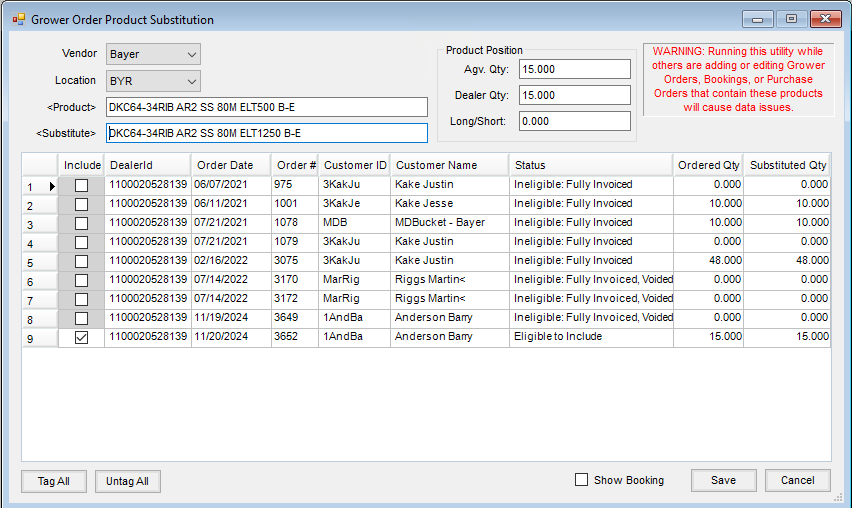
- Choose the Grower Orders to include in the Product substitution by selecting the Include option. To select all Grower Orders in the grid, choose Tag All.
Note: Rows with a Status of Ineligible will be grayed out and are not available to include. - Optionally check Show Booking to display the updated Booking information for each Customer's Grower Order included in the substitution.
Note: The Bookings will display after the Step 9 is completed. - The Substituted Qty column is available to give the ability to request only a partial substitution up to the original Ordered Qty requested.
- Select Save. Changes are communicated to the supplier and the Grower Order, Booking, and applicable Purchase Order are updated.
Reconcile
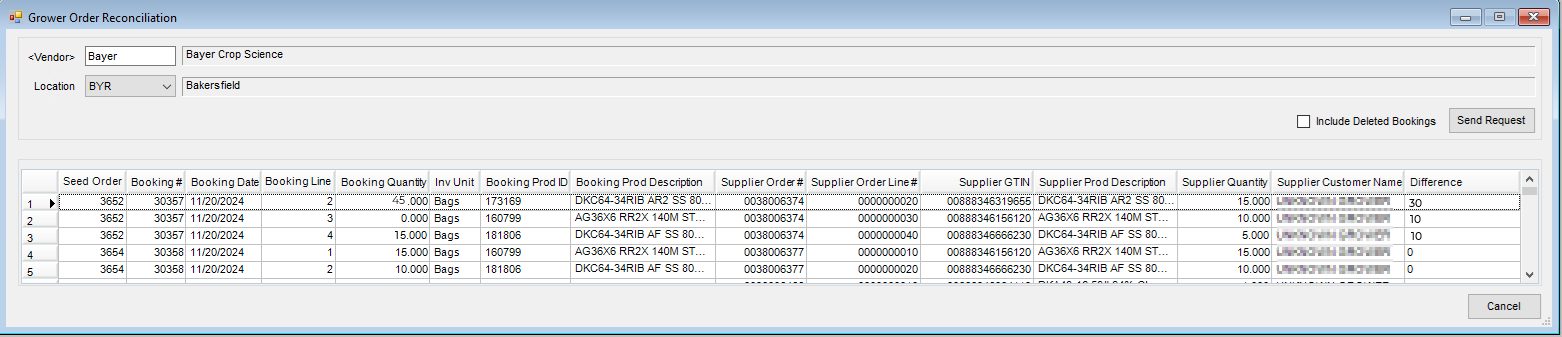
Grower Order Reconciliation allows Grower Orders in Agvance to be reconciled against the corresponding Vendor’s web service by displaying the information from both systems.
- Navigate to Accounting / Inventory / Manage Seed Orders / Grower Order Reconciliation.
- Select the Vendor and the desired Location to be reconciled. Optionally, choose Include Deleted Bookings to display Grower Orders tied to deleted Bookings in the results.
- Choose Send Request to submit a request to the Vendor for Grower Order information.
Note: Depending on the volume of information, this process may take some time. - Once loaded, the grid displays a side-by-side comparison of the Grower Orders in Agvance and the Grower Orders from the Vendor. Included is a Difference column that displays the difference between the Agvance Booking Quantity and the Supplier Quantity at the line-item level.
- Review the quantity in the Difference column and make any necessary adjustments to Grower Orders to reconcile the difference between the two systems. If unsure of the correct way to adjust for the differences, please contact SSI.