Integrations connect third party tracking and file transfer services to Agvance SKY Dispatch, so dispatchers can monitor fleet movement, view real time asset locations on the map, and send job files to equipment and applicators from a single interface.
Select a tab below for the setup steps specific to each integration.
MyJohnDeere
Link and send VRT files to MyJohnDeere accounts from Agvance SKY Dispatch.
- In Agvance SKY Admin, select My John Deere Login to open the login page and sign in to MyJohnDeere through Agvance SKY. This is available under the Integrations Setup area to enter a company wide API Key, and/or the Location Preference Setup to enter a Location specific key.
Note: The Location key trumps the Company level key when tying Vehicles to a Machine ID and when sending files.
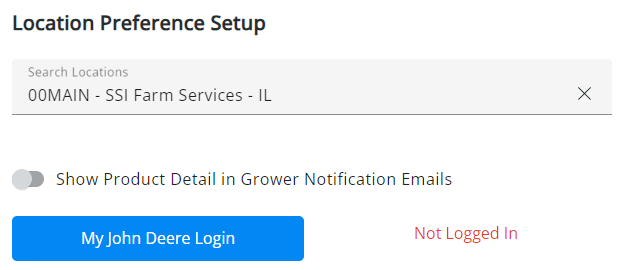
- After selecting the My John Deere Login button, a pop-up displays to allow Agvance SKY Dispatch access to the John Deere Operations Center account.

- Once access has been allowed, complete the setup of connections within John Deere Operations Center. Select an Organization and choose Save.

- After selecting an Organization, edit Access to ensure this connection accesses all information needed for the integration. The Equipment setting must be a minimum of level 1 with the Setup File Creator, Products, and Wireless Data Transfer checkboxes selected. The Location setting must be a minimum of level 3.

- Once the connection setup is completed within John Deere Operations Center, return to Agvance SKY Dispatch to continue connecting John Deere devices to Agvance Vehicles.
- MyJD Monitors can be tied to Vehicles in the Integrations Setup grid under Company Settings in Agvance SKY Dispatch. The name defaults into the Machine Alias area but can be edited.
- On the Jobs List or Map view, after selecting the Tickets, the More Options menu gives the ability to Send Files to MyJohnDeere. Indicate the Device to send files to from the drop-down, then drag and drop or select Browse to locate the appropriate zip file. Only integrations enabled on the My Assets tab are available to select as a device in the Upload Files window.
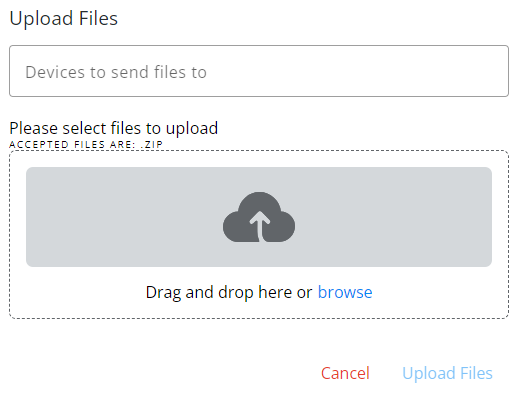
- When assigning a job in Agvance SKY Dispatch, the Integration Type tied to the Vehicle that is tied to the Applicator being assigned is shown in the drop-down.
- Select Files at the bottom of the screen to view a queue of transferred files and their statuses. This grid includes the Machine ID, Integration Type, File Name, Status, and Date Transferred columns. Last refreshed xx minute(s) ago displays below the Items per page drop down. Refreshing the browser window updates the number of minutes.
- Common statuses and their meanings:
- In Process – File has been sent to John Deere Operations Center.
- Success – File was received by John Deere Operations Center.
- Available to Display – File has been sent to device.
- Operator Accepted – File has been downloaded to device by user.
- Operator Rejected – User has deleted file prior to downloading to device.
- Queued – File received by John Deere Operations Center but device is offline.
- Common statuses and their meanings:


Razor Tracking
Razor Tracking gives the ability to view real time location data for Razor equipped vehicles directly on the Agvance SKY Dispatch and Agvance Ops maps. By bridging third party tracking with Agvance, this integration ensures dispatchers can monitor fleet movement and job status in a unified interface.
Setup in Agvance SKY Admin
An administrator must first enable the integration by entering the required API credentials.
- Navigate to Agvance SKY Admin / Dispatch.
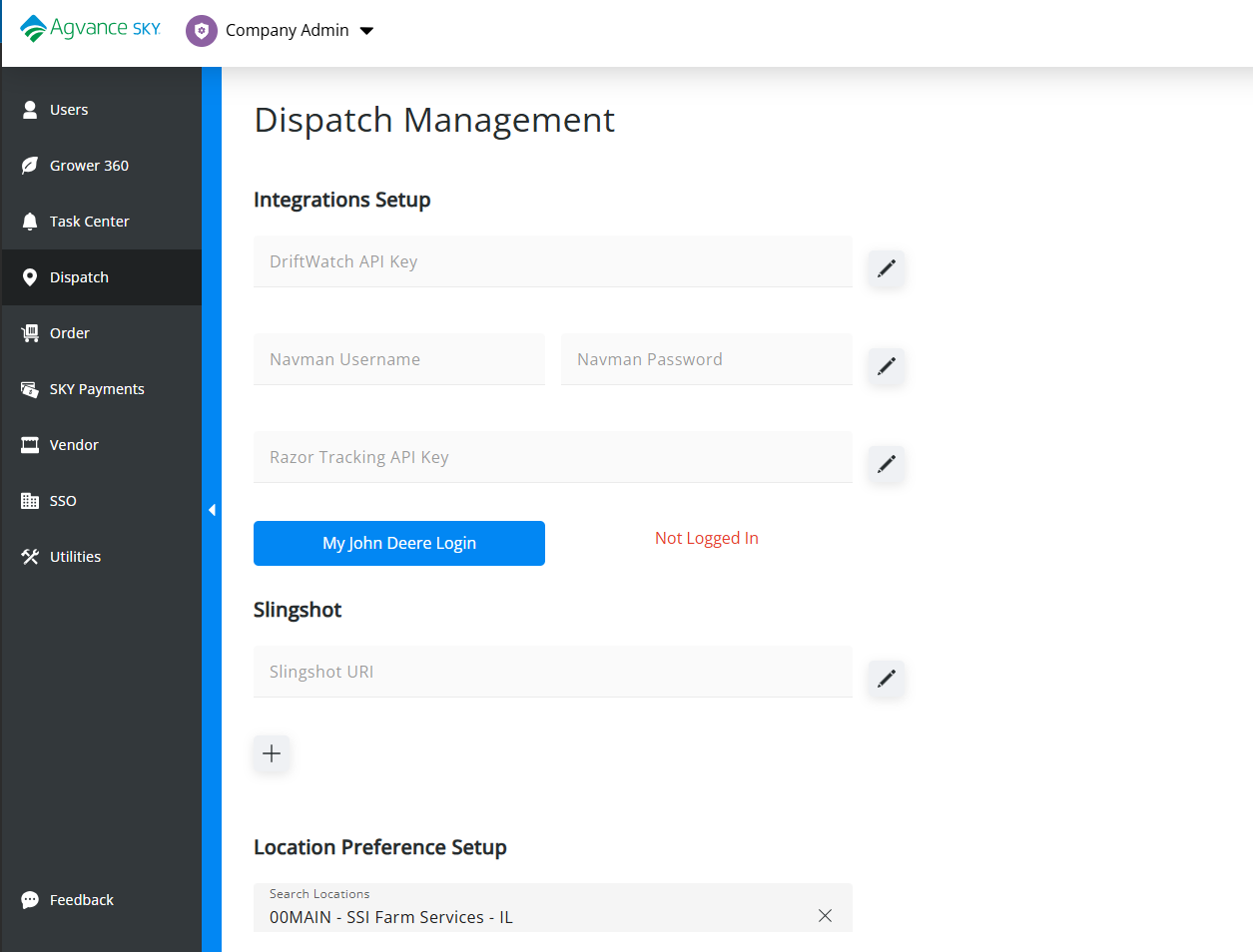
- In the Integrations Setup section, enter the Razor Tracking API Key.
- Select the Edit icon to save the key.
Setup in Company Settings
Once enabled in Agvance SKY Admin, individual assets must be linked to Vehicles in Company Settings.
- Navigate to Agvance SKY Dispatch / Company Settings / Integrations.
- Select + Add Integration.
- Complete the setup fields:
- Vehicle – Select the Vehicle to link.
- Integration Type – Select Razor Tracking.
- Machine ID – Select the unique identifier of the Razor asset.
- Machine Alias – This defaults as the Machine ID but can be edited.
- Map Icon – Choose a visual icon to represent the asset.
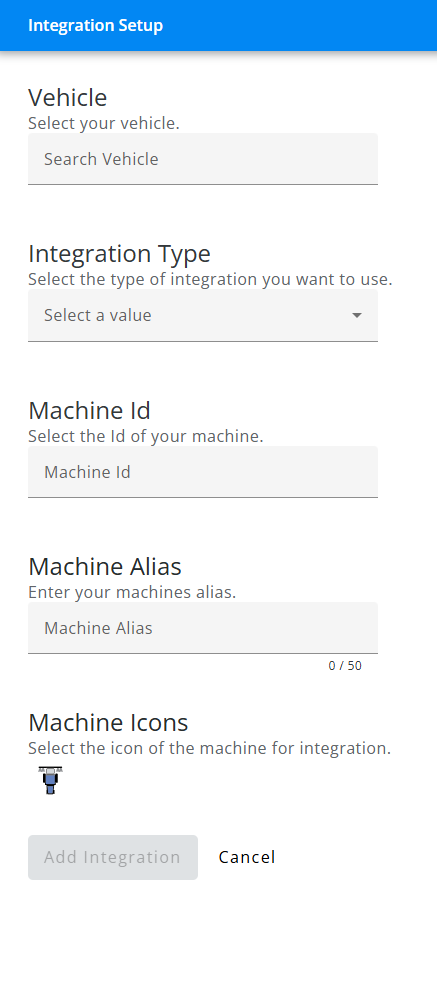
- Choose Add Integration to complete the connection.
My Assets Settings
Control the visibility of integrated devices on map view through the My Assets tab.
- Select My Assets from the menu.
- Locate the Integrated Device section.
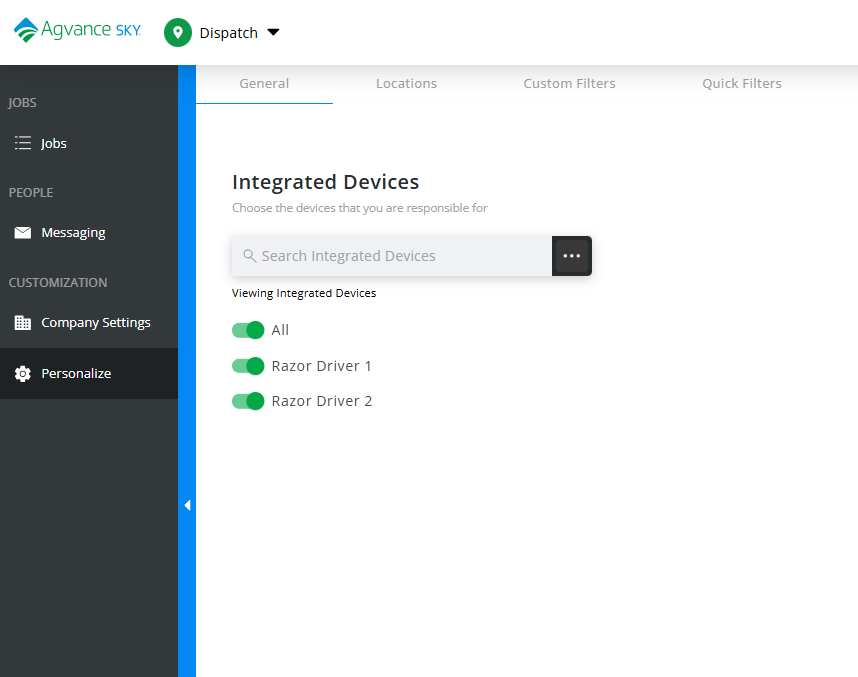
- Turn on Razor Tracking to display on the map.
Map View
Tracked assets, identified by their chosen Icon and Machine Alias, appear on the Agvance SKY Dispatch map when the Integrations option is enabled in the map options. Right click any asset icon on the map to view the timestamp of its last reported location.
Samsara
The Samsara Integration gives the ability to view real time location data directly on Agvance SKY Dispatch and Agvance Ops maps. By bridging third party tracking with Agvance, this integration ensures dispatchers can monitor fleet movement and job status in a unified interface.
Setup in Agvance SKY Admin
An administrator must first enable the integration by entering the required API credentials.
- Navigate to Agvance SKY Admin / Dispatch.
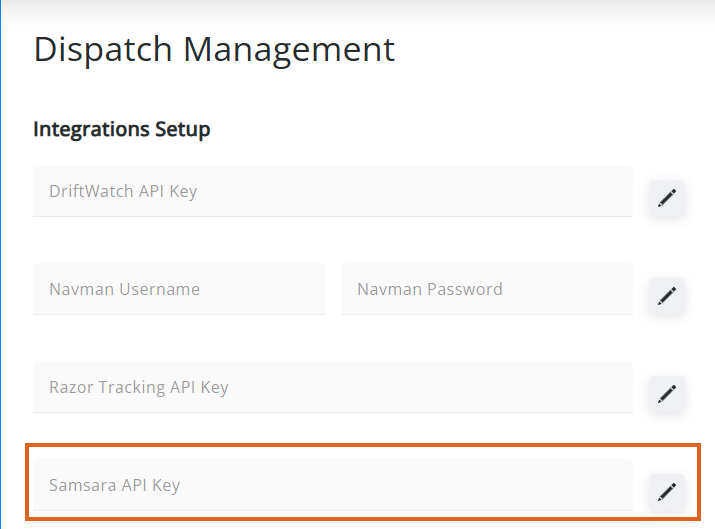
- In the Integrations Setup section, enter the Samsara API Key.
- Select the Edit icon to save the key.
- Once the key is validated, it will save.
Note: The Samsara API Key can be removed after validation by selecting the Delete icon.
Setup in Company Settings
- Navigate to Agvance SKY Dispatch / Company Settings / Integrations.
- Select + Add Integration.
- Complete the setup fields:
- Vehicle – Select the Vehicle to link.
- Integration Type – Select Samsara.
- Machine ID – Select the unique identifier of the Samsara asset.
- Machine Alias – This defaults as the Machine ID but can be edited.
- Map Icon – Choose a visual icon to represent the asset.
- Choose Add Integration to complete the connection.
Satloc Aerial
The Satloc Integration gives the ability to manually upload job files to Satloc and assign aircraft to the jobs directly from Agvance SKY Dispatch.
Setup in Agvance SKY Admin
An administrator must first enable the integration by entering the required API credentials.
- Navigate to Agvance SKY Admin / Dispatch.
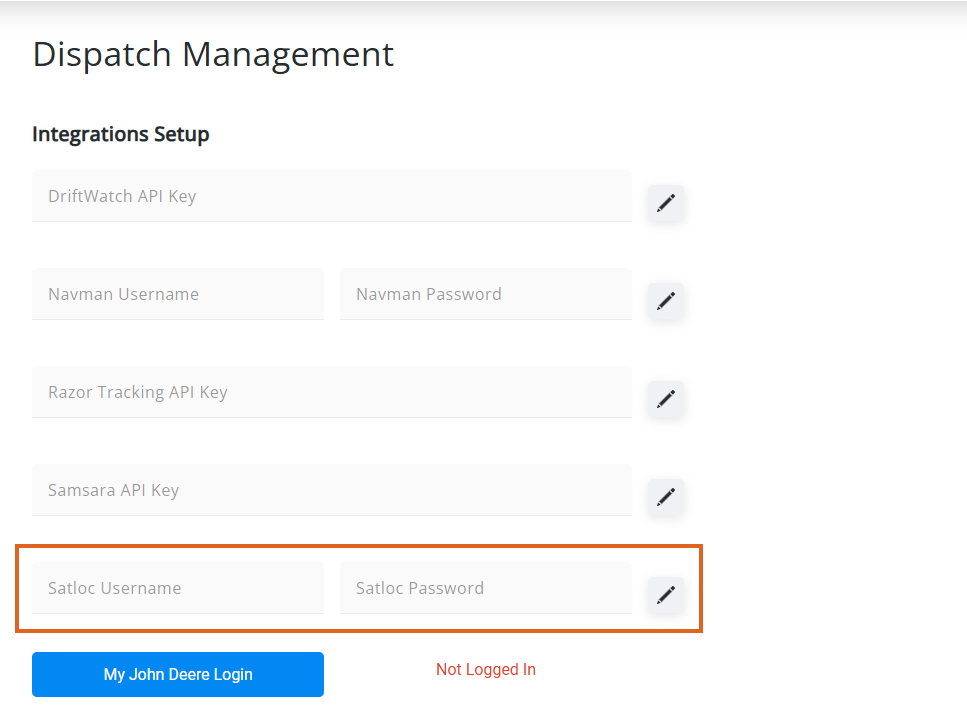
- In the Integrations Setup section, enter the Satloc Username and Satloc Password.
Note: A Satloc Username and Password will need set up as a Vendor user within the Satloc Cloud prior to establishing a connection. - Select the Edit icon to save the username and password.
- Once the login is validated, it will save.
Note: The Satloc credentials can be removed after validation by selecting the Delete icon.
Setup in Company Settings
- Navigate to Agvance SKY Dispatch / Company Settings / Integrations.
- Select + Add Integration.
- Complete the setup fields:
- Vehicle – Select the Vehicle to link.
- Integration Type – Select Satloc.
- Machine ID – Select the unique identifier of the Satloc asset.
- Machine Alias – This defaults as the Machine ID but can be edited.
- Map Icon – Choose a visual icon to represent the asset.
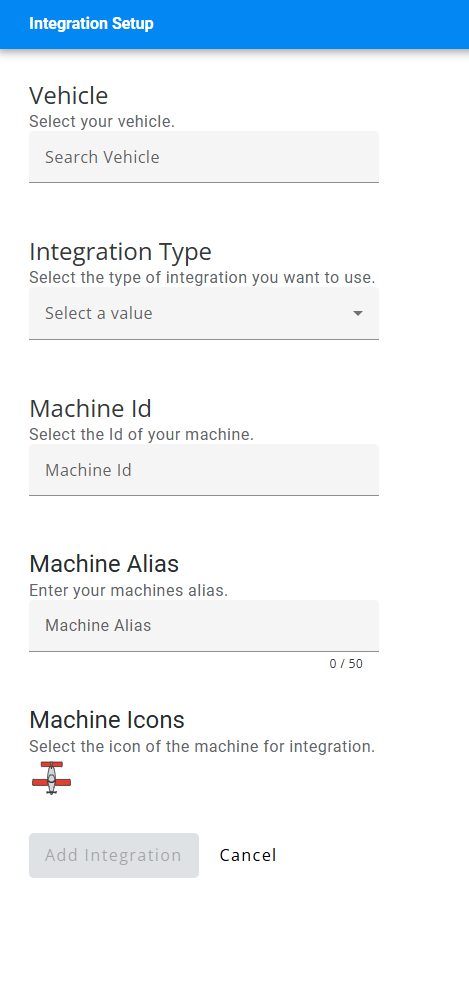
- Choose Add Integration to complete the connection.
Slingshot
Send files to Applicators through Slingshot in Agvance SKY Dispatch.
- In Agvance SKY Admin under Dispatch, select the Edit next to Slingshot URI to edit that field. Enter https://api.ravenslingshot.com then choose the green Checkmark.

- The + can be selected to enter the Slingshot Key. The Enabled toggle indicates if the key is active or not. Select the green Checkmark to save the key entered. Note: Multiple keys can be added here. Repeat Step 2 for each key.
- Slingshot devices can be tied to Vehicles in the Integrations Setup grid under Company Settings in Agvance SKY Dispatch. The name defaults into the Machine Alias area but can be edited.
- On the Jobs List or Map view, after selecting the Tickets, the More Options menu gives the ability to Send Files to Slingshot. Indicate the Device to send files to from the drop down, then drag and drop or select Browse to locate the appropriate zip file. This area has the ability to select multiple devices and send multiple files at once. Only integrations enabled on the My Assets tab are available to select as a device in the Upload Files window.
- When assigning a job in Agvance SKY Dispatch, the Integration Type and Machine Alias tied to the Vehicle that is tied to the Applicator being assigned is shown in the drop-down.

